Profile Management – Recycle Bin
by · MasLogin · October 13, 2025
The Recycle Bin keeps the browser profiles you have deleted. You can view and manage deleted profiles here.
Recycle Bin Page
In the profile list under 【Profile】, click 【Recycle Bin】 in the top-right corner.
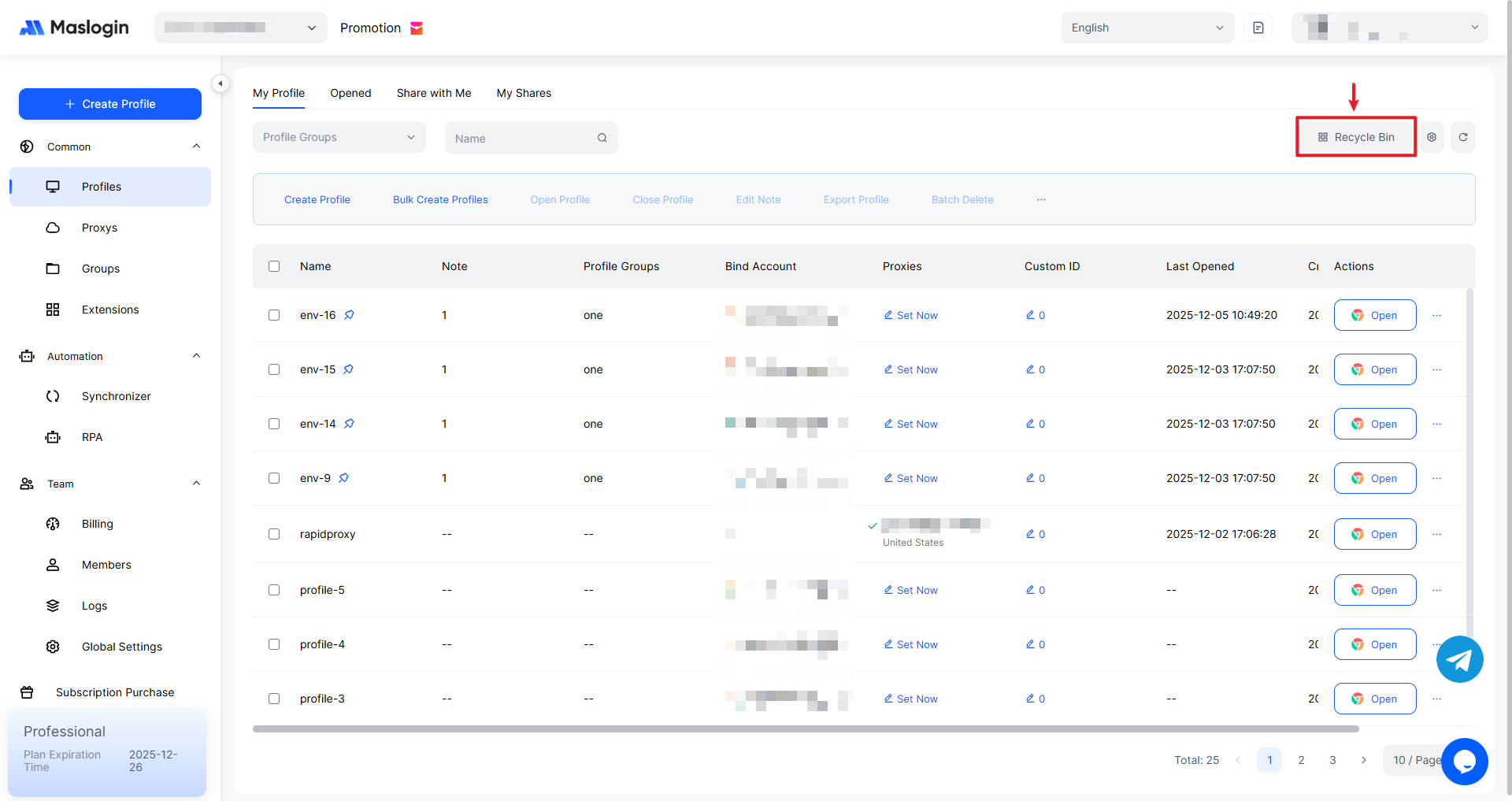
You will enter the Recycle Bin page, where previously deleted browser profiles are listed. These profiles retain the information they had before deletion.
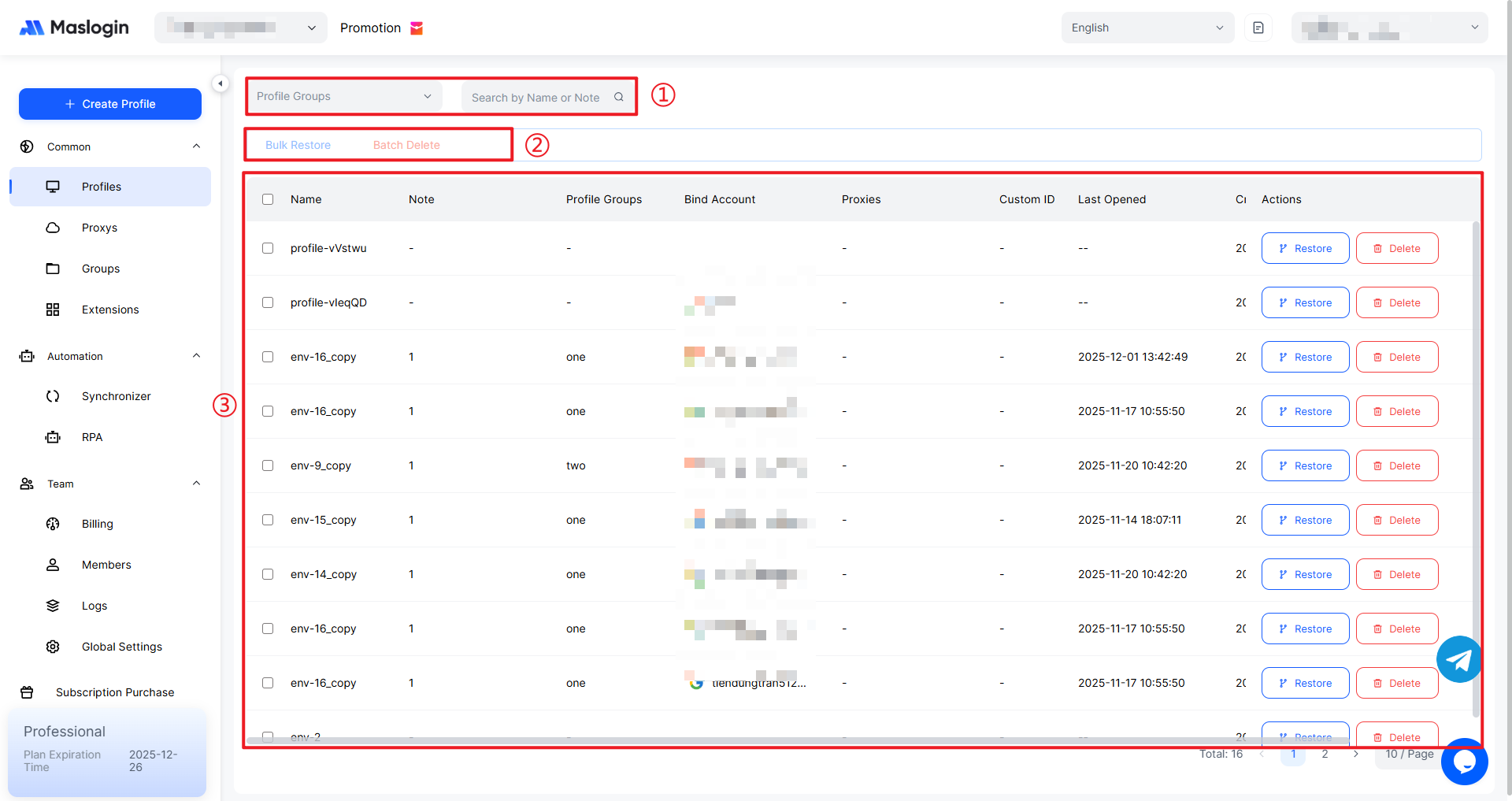
- ① Search box: Quickly filter profiles by “Name or Note”. Supports fuzzy search to help you locate a target profile in large lists.
- ② Batch actions area: Select the checkboxes on the left first. You can then batch restore or batch delete the selected profiles, making it easy to organize profiles in bulk.
- ③ Profile list area: Displays information such as profile name, notes, proxy, and last opened time for all profiles in the current group, and provides single-item Restore and Delete buttons.
Restore a Profile
Click 【Restore】 on the far right of the list.
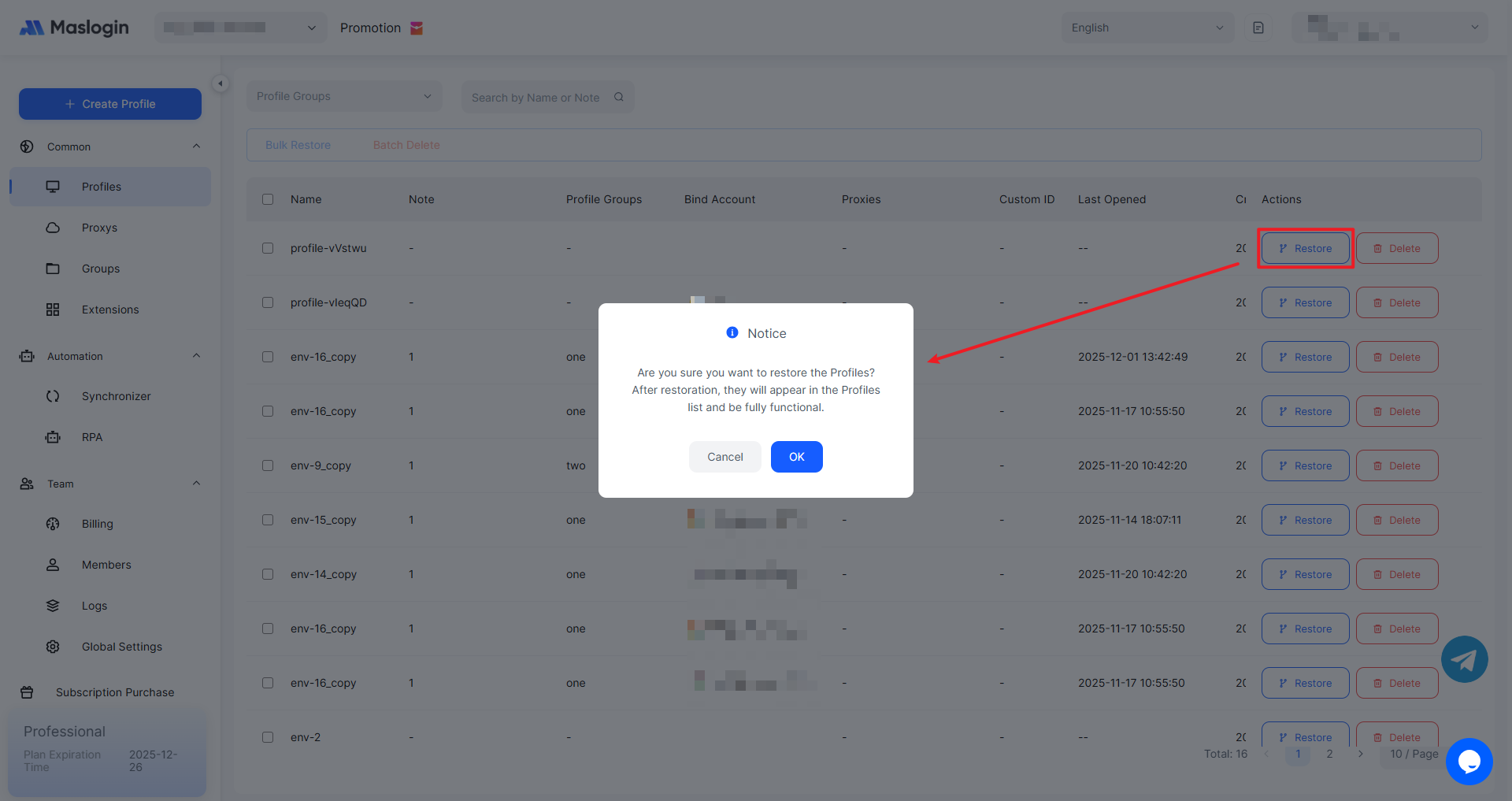
After clicking 【OK】, the profile will be restored to the profile list and can be used normally.
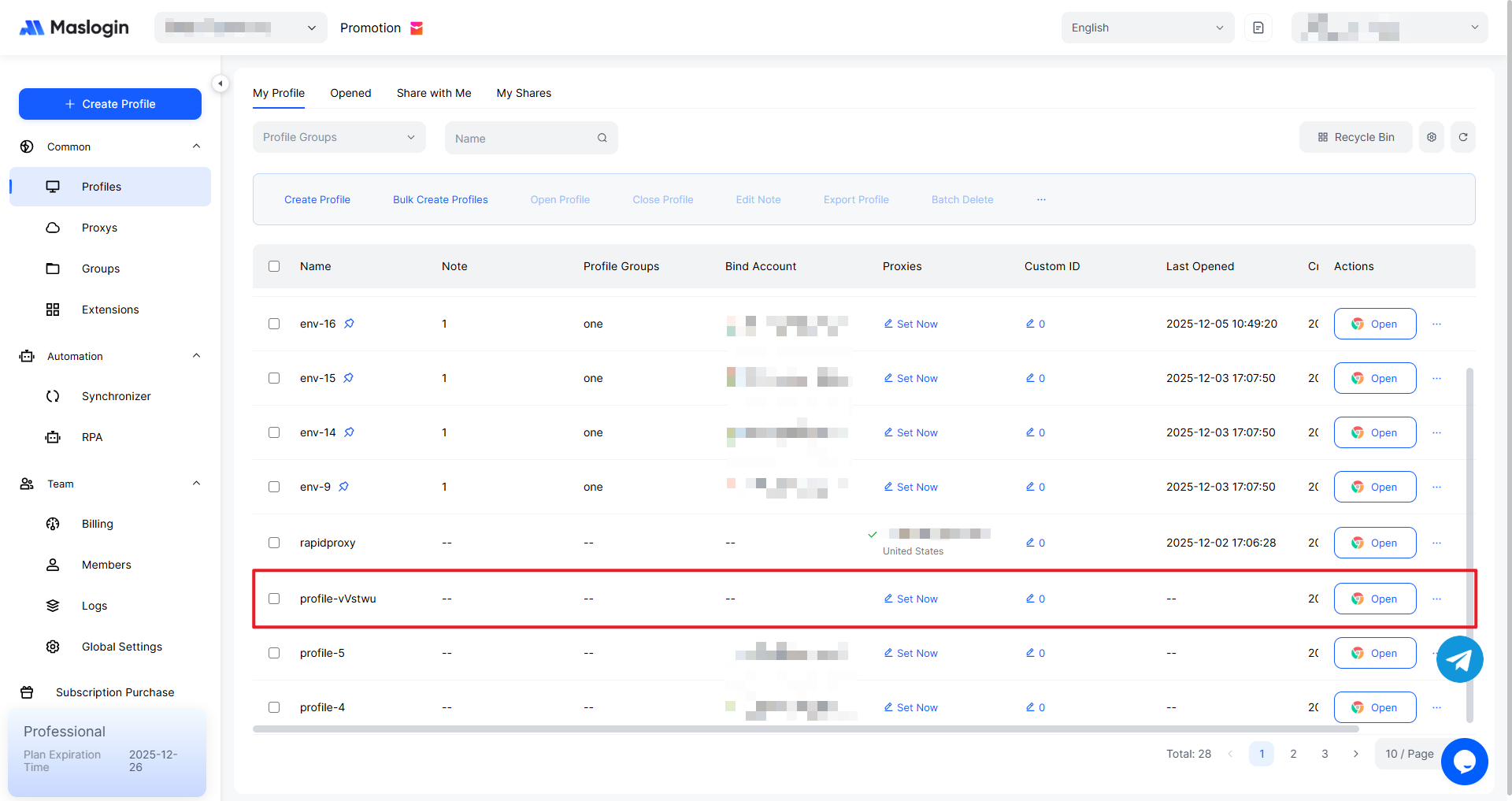
Permanently Delete a Profile
Click 【Delete】 on the far right of the list.
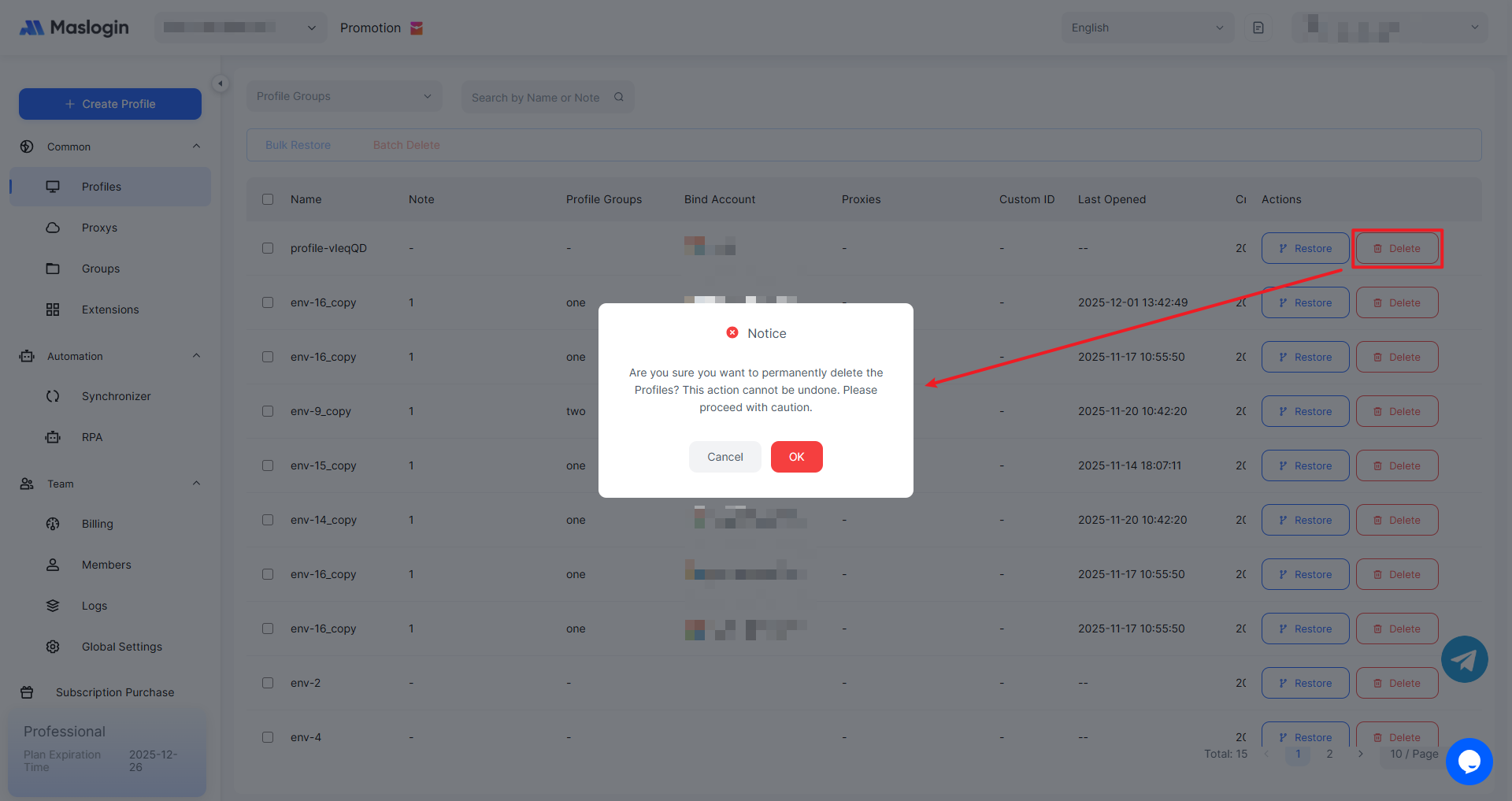
Note: After you click confirm, the profile will be permanently deleted and cannot be undone. Please proceed with caution.
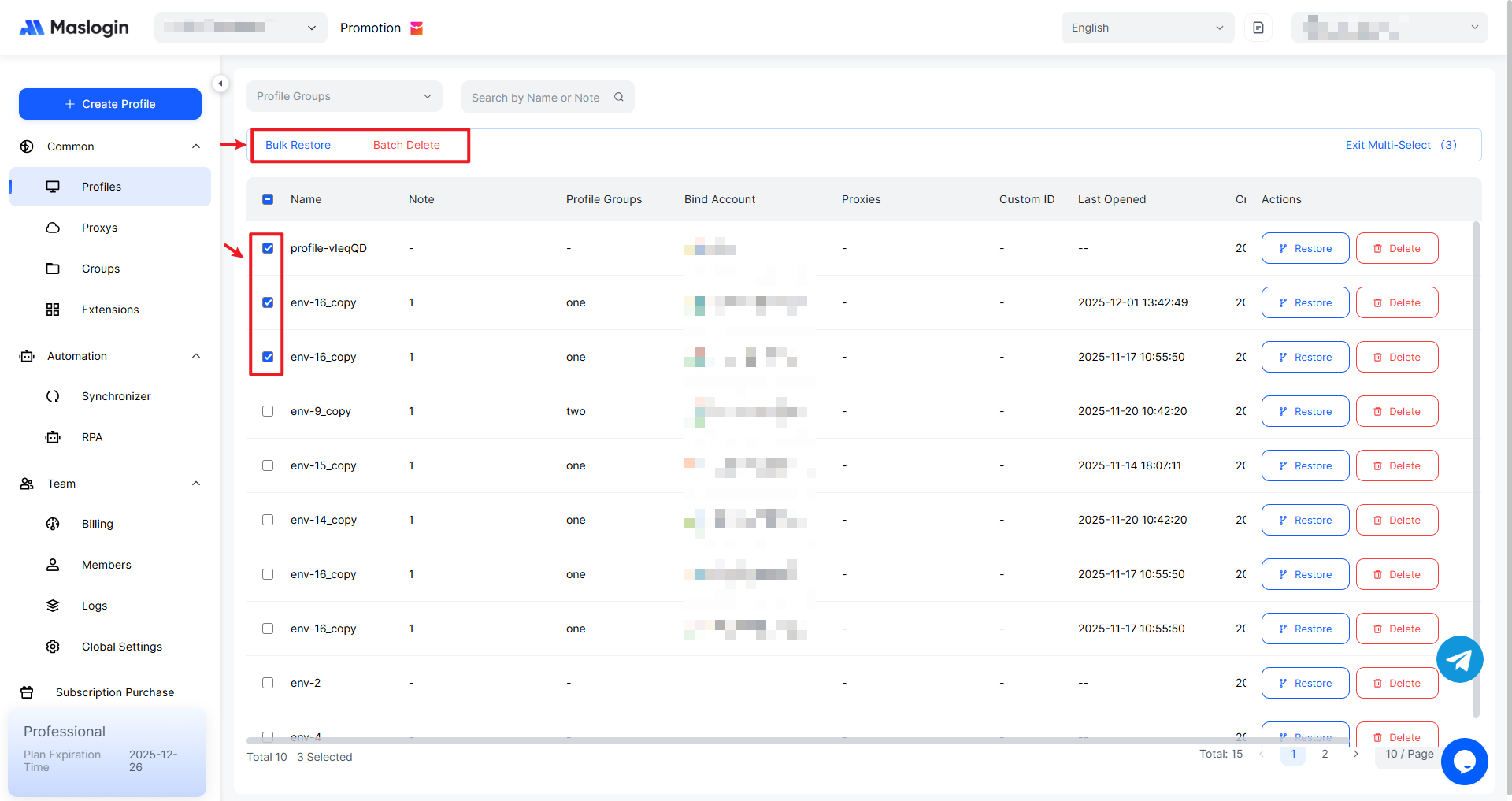
Batch Restore / Permanently Delete Profiles
Select the profiles you want to restore or permanently delete, then click “Bulk Restore” or “Bulk Delete” in the top bar of the list.