Profile Management – Transfer Profile
by · MasLogin · October 13, 2025
The Profile Transfer feature in MasLogin is mainly used to migrate a specific profile between different teams or users.
Open the Profile List
In the profile list under 【Profile】, click “…” on the profile you want to transfer, then select “Transfer Profile” from the expanded menu.
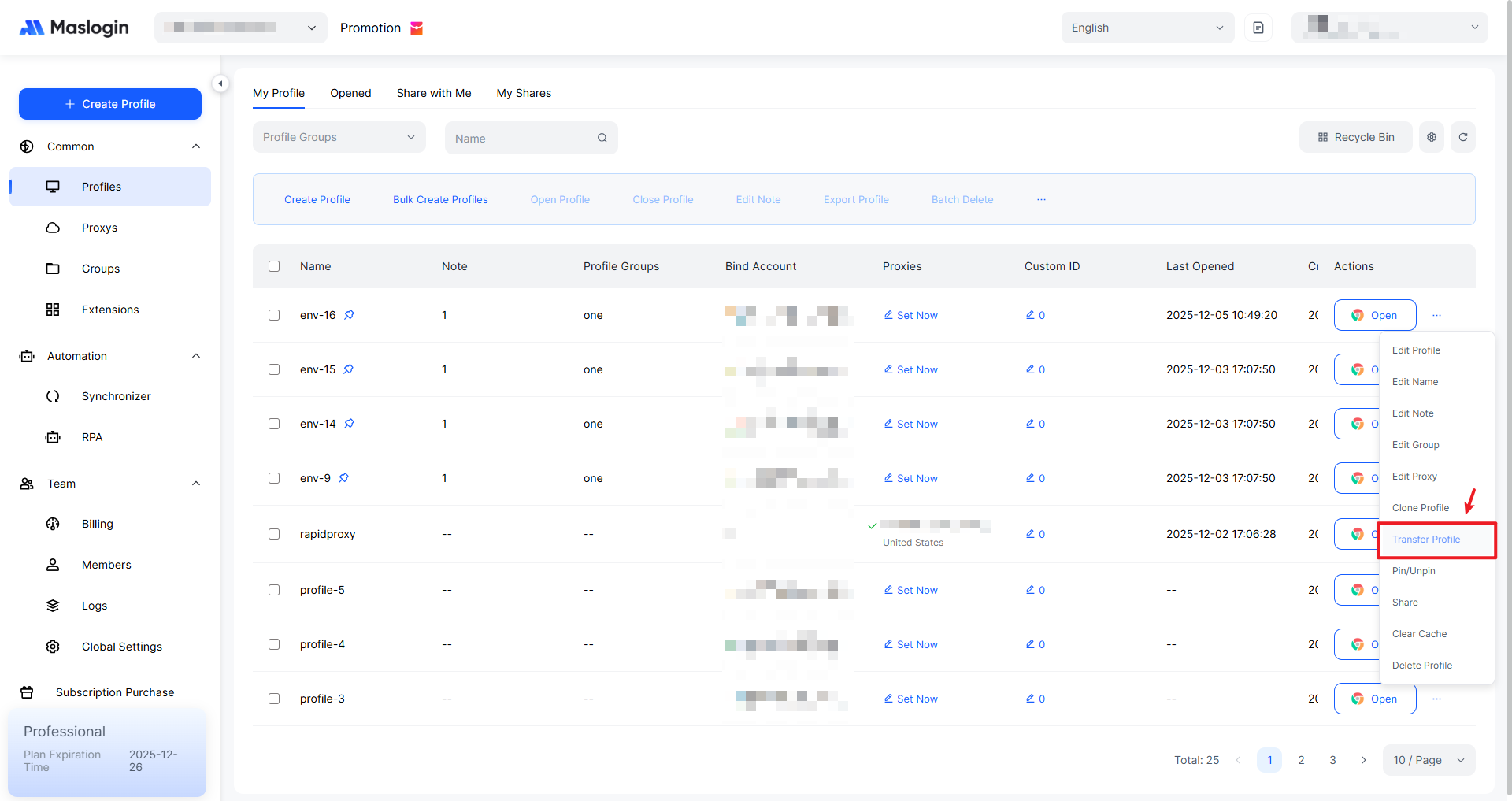
Transfer a Profile
Fill in the transfer details and click 【OK】 to complete the transfer. The receiving team can view the transferred profile directly in the profile list.
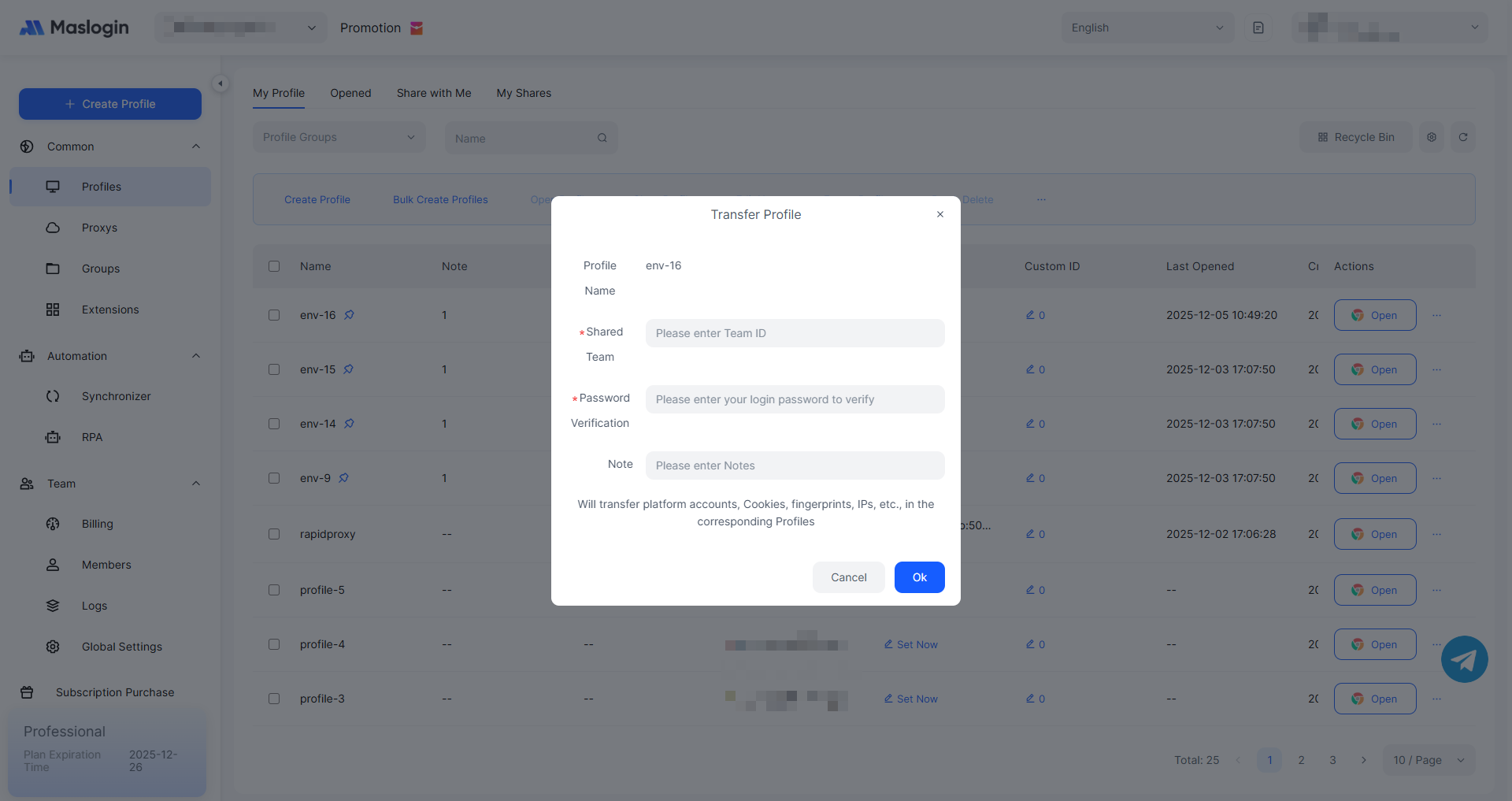
- Target team: Enter the Team ID of the team that will receive the profile.
- Password verification: Enter the current account’s login password for verification, not the receiving team’s password.
- Note: Add details about this profile transfer, such as the reason for transfer or the profile’s special purpose, to make it easier to review and manage later.
Batch Transfer Profiles
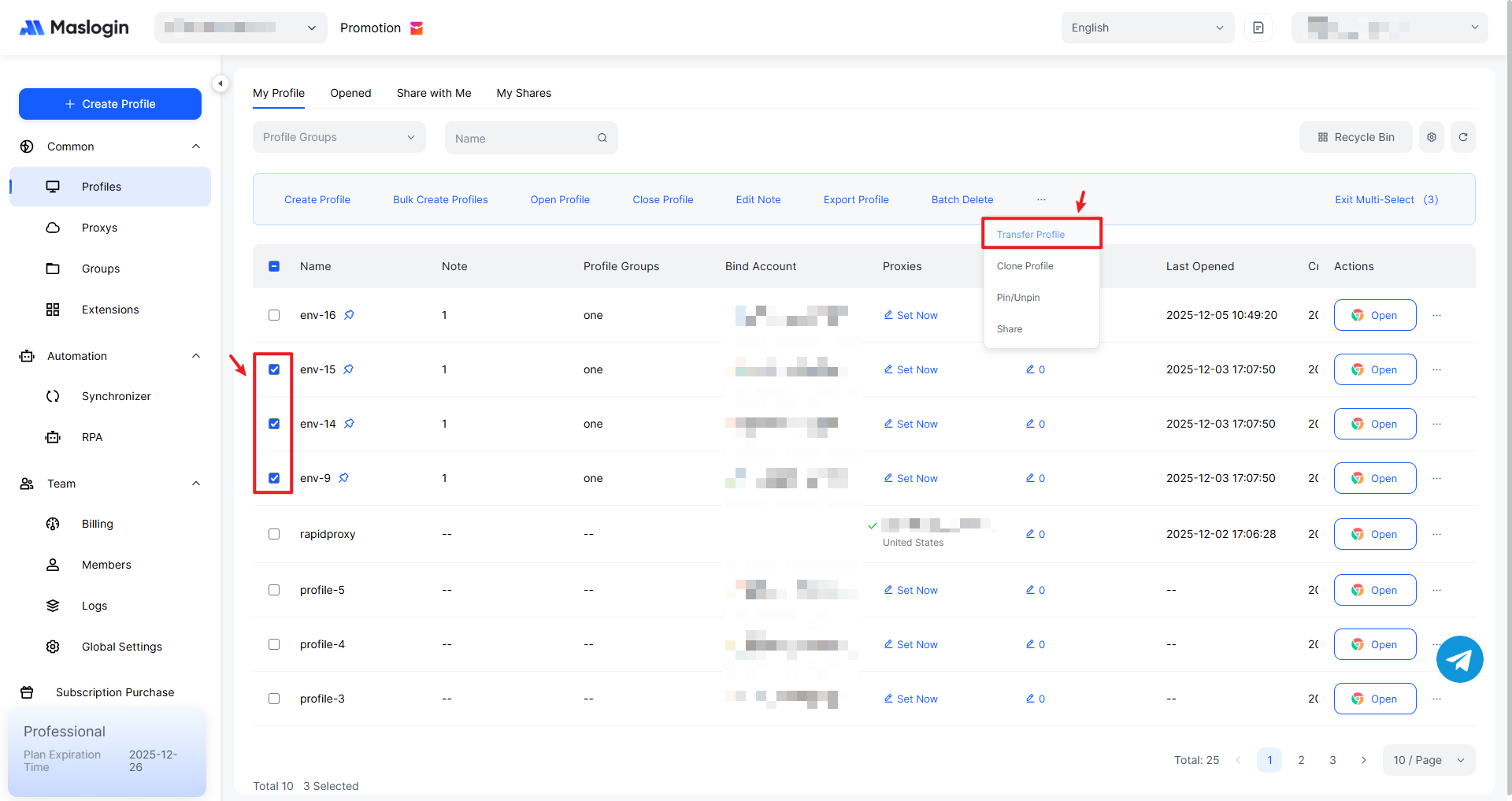
Select the profiles you want to transfer, then use the top “…” menu to find and click “Transfer Profile”.
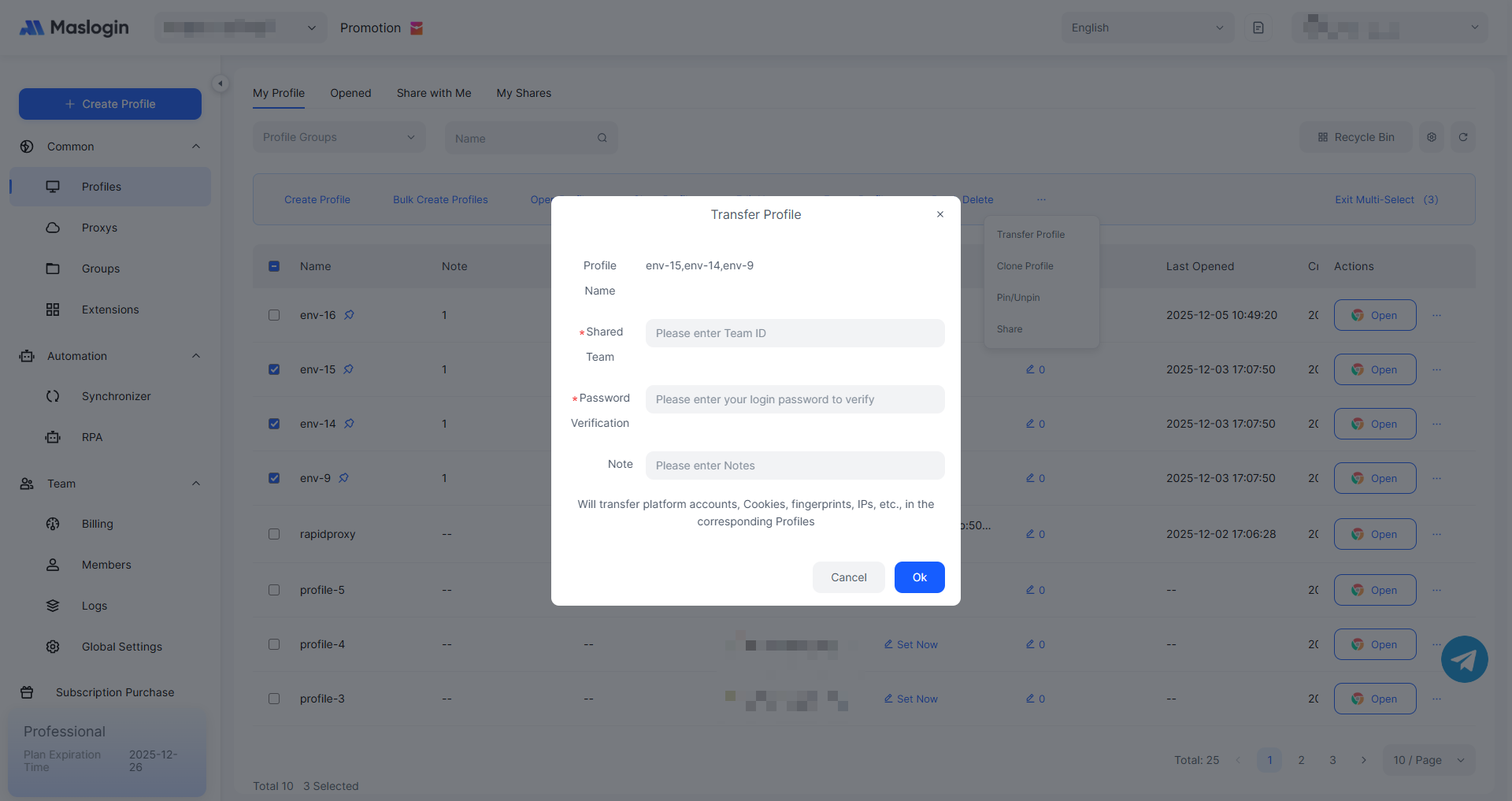
Verify the profile transfer details and click 【OK】 to confirm.
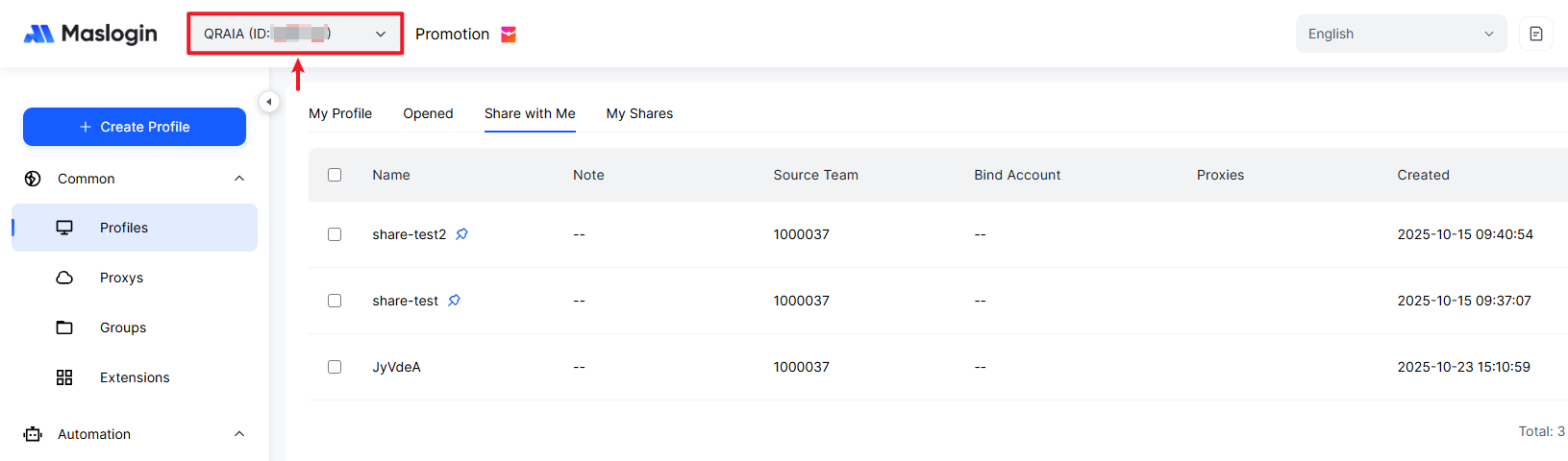
How to Find the Team ID
Near the top-left area of the app, you can view the current team name and Team ID.
Note:
- After transferring a profile, it will no longer appear in the original account’s profile list. Before transferring, make sure you create a clone backup.
- After transferring a profile, it impacts all accounts under the same team.