Profile View – Profile List
by · MasLogin · October 13, 2025
In the MasLogin fingerprint browser, the core purpose of a browser profile is to hide or modify browser attributes. When a browser visits a website, it automatically sends identifying information such as device details, IP address, user agent string, and plugin list. This information can be easily detected or tracked by platforms. A browser profile helps users hide real information by modifying and simulating these identifiers.
View and Manage the Profiles Home Page
In 【Profiles】 in MasLogin, you can see all profiles you’ve created. Creating, editing, deleting, cloning, and pinning existing profiles can all be done here.
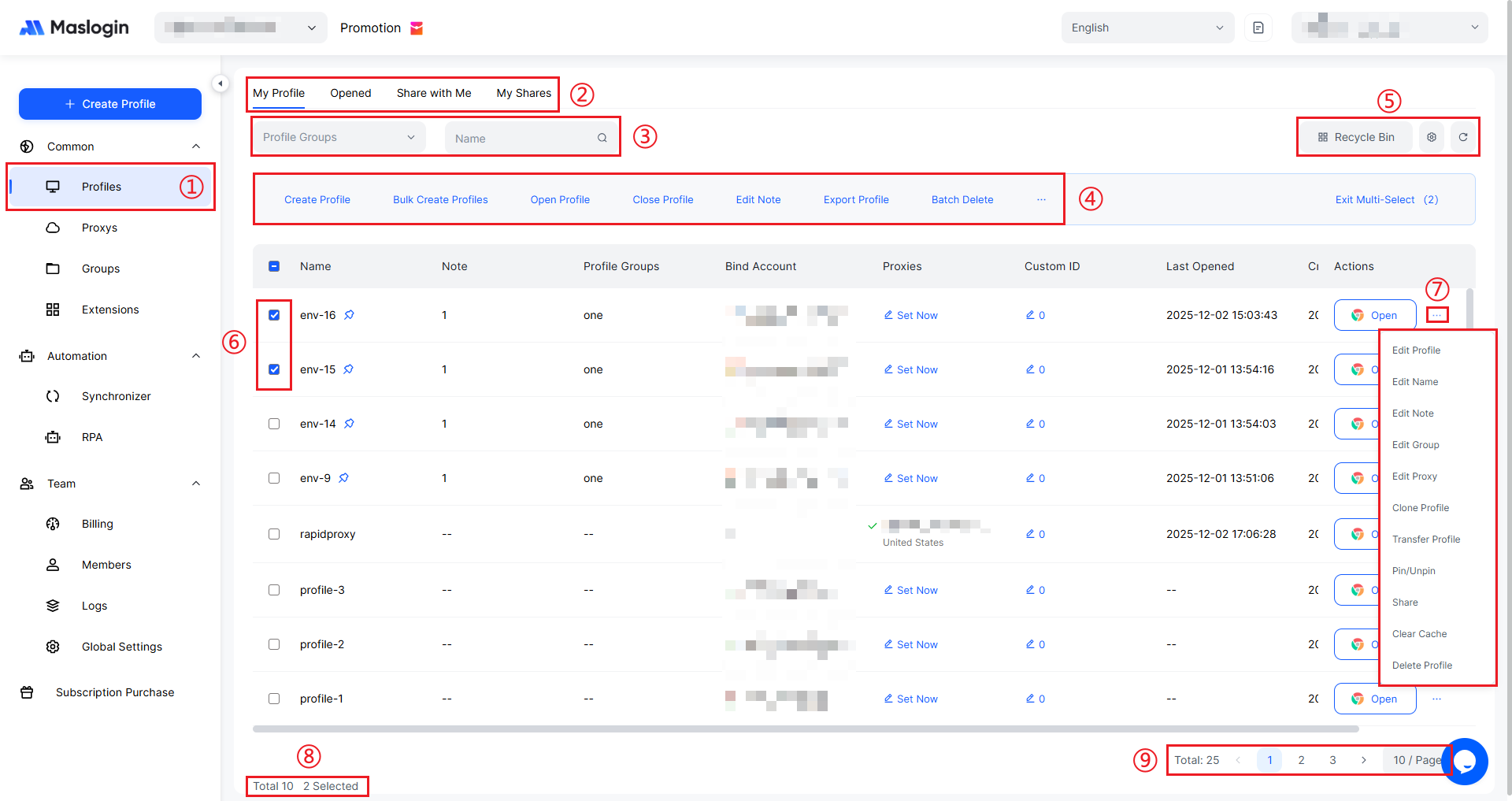
- ① Profile Management: Click 【Profiles】 in the left sidebar to enter the main entry for the profile management interface. search box, used to filter or search by name to quickly locate the target profile.
- ② Tabs: Includes four tabs—“My Profile”, “Opened”, “Shared with Me”, and “My Shares”—used to categorize profiles by ownership or status, making it easy to switch views.
- ③ Filter and Search Bar: Consists of the “Profile Group” drop-down and the “Name” search box, used to filter or search by name to quickly locate the target profile.
- ④ Action Bar: Provides actions such as “Create Profile”, “Bulk Create Profiles”, “Open Profile”, “Close Profile”, “Edit Note”, “Export Profiles”, and “Batch Delete”, supporting both batch and single-profile management tasks like creation, editing, and deletion.
- ⑤ Recycle Bin, Settings, and Refresh: “Recycle Bin” stores deleted profiles and supports restore or permanent deletion. The settings icon opens the profile list display and sorting configuration. The refresh icon updates the profile list display status.
- ⑥ Profile Selection Checkbox: Used to select profiles for batch actions. After selecting, you can perform batch operations such as batch close and batch delete.
- ⑦ Single-Profile Actions Menu: Click “…” to open a menu with options including “Edit Profile”, “Edit Name”, “Edit Note”, “Edit Group”, “Edit Proxy”, “Clone Profile”, “Transfer Profile”, “Pin / Unpin”, “Share”, “Clear Cache”, and “Delete Profile”, enabling detailed management for a single profile.
- ⑧ Page Count: Shows the number of profiles on the current page (10 total) and the number selected (2 selected).
- ⑨ Totals and Pagination: Displays the total number of profiles, total pages, and pagination info (10 items/page). You can also set how many profiles to show per page to understand scale and browse pages efficiently.
List Display and Sorting
In the top-right corner of 【Profiles】, click the settings icon to configure list sorting and displayed columns.
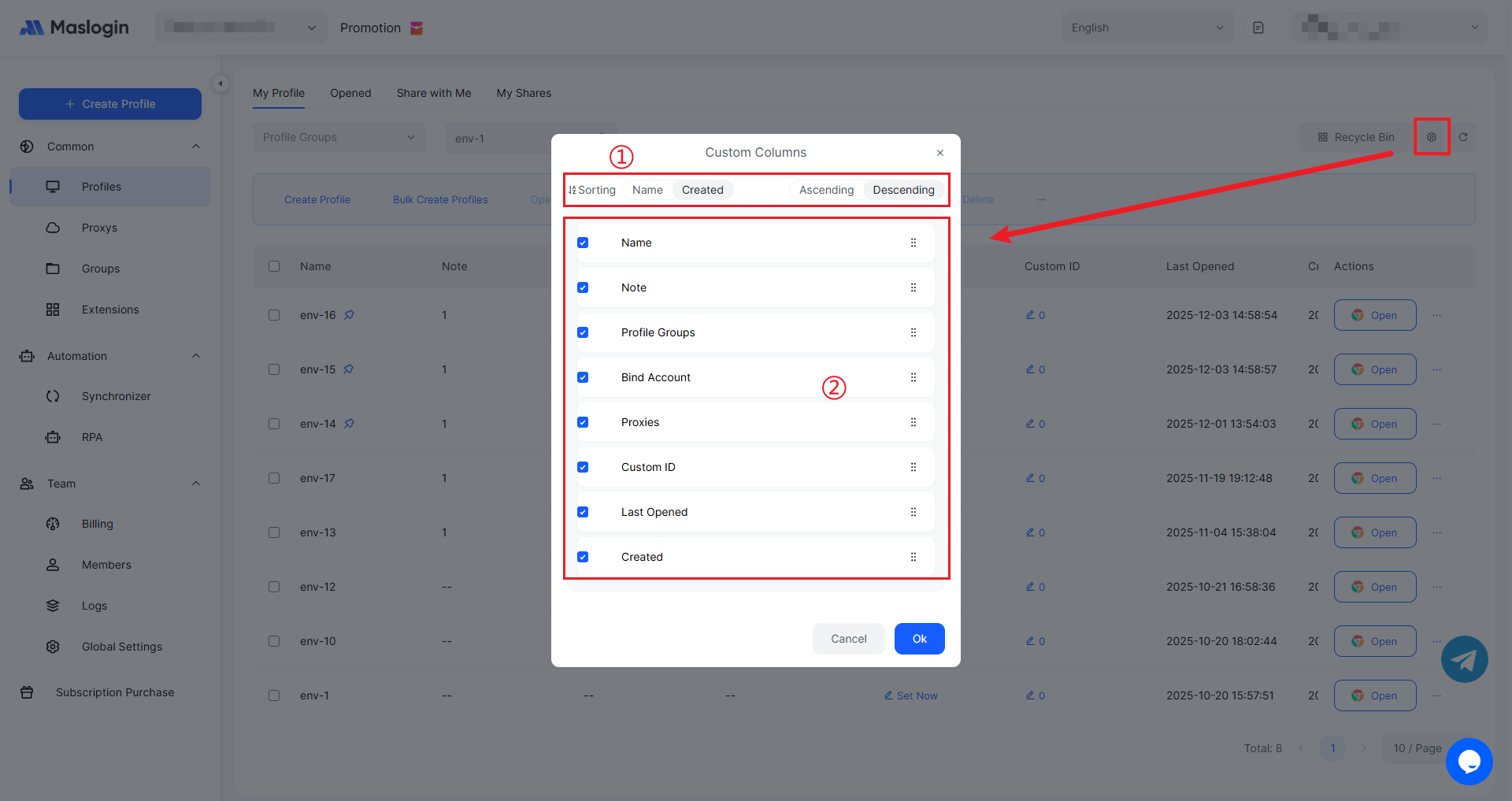
- ① Sort Criteria: Choose “Name” or “Created Time” as the sorting criterion, and set the order to “Ascending” or “Descending”.
- ② Column Settings: Select options such as “Name”, “Note”, and “Profile Group” to customize which columns are shown in the list.
Customize Profile List Fields
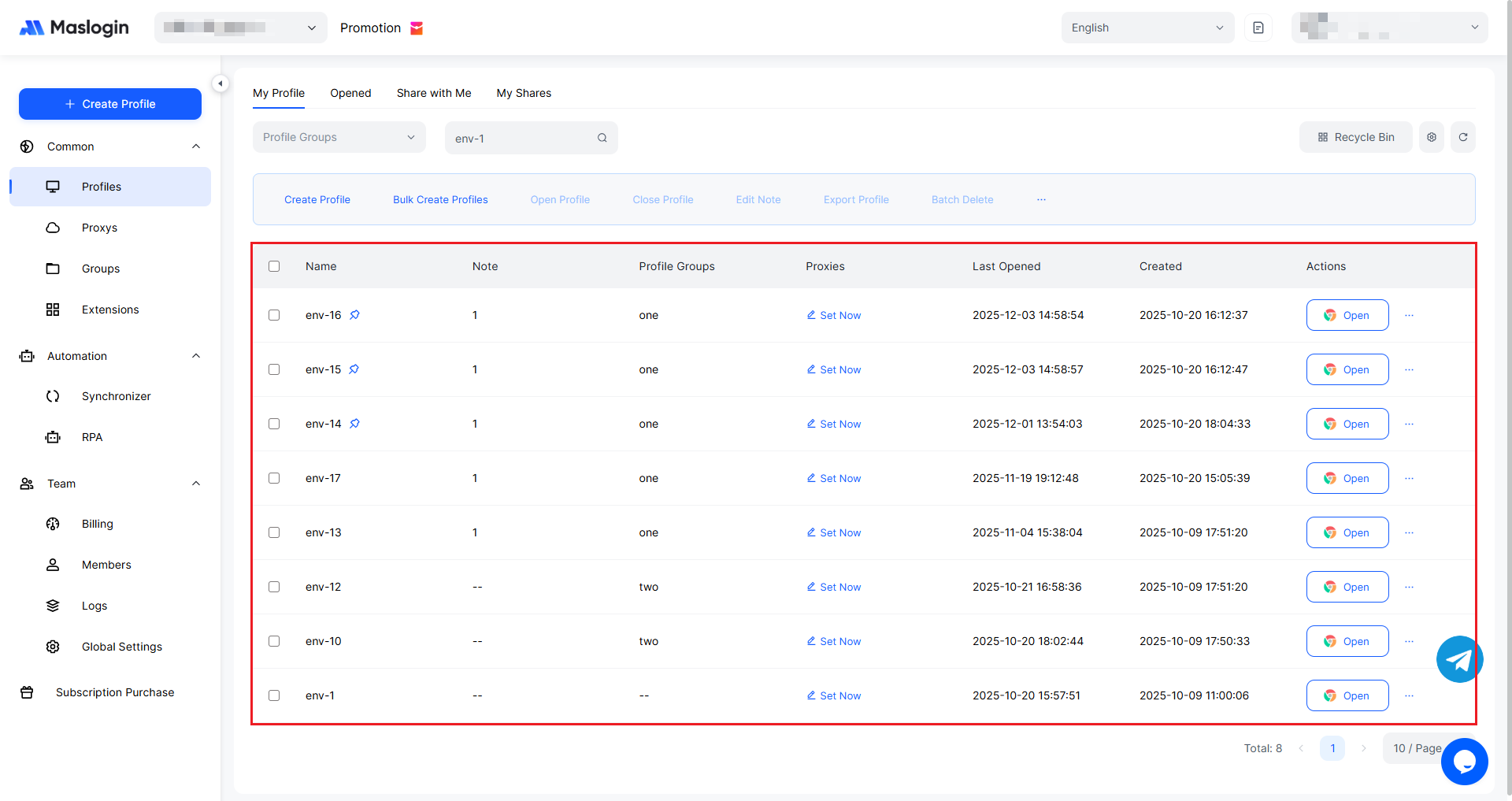
MasLogin allows you to select and configure which fields to display in the profile list view.
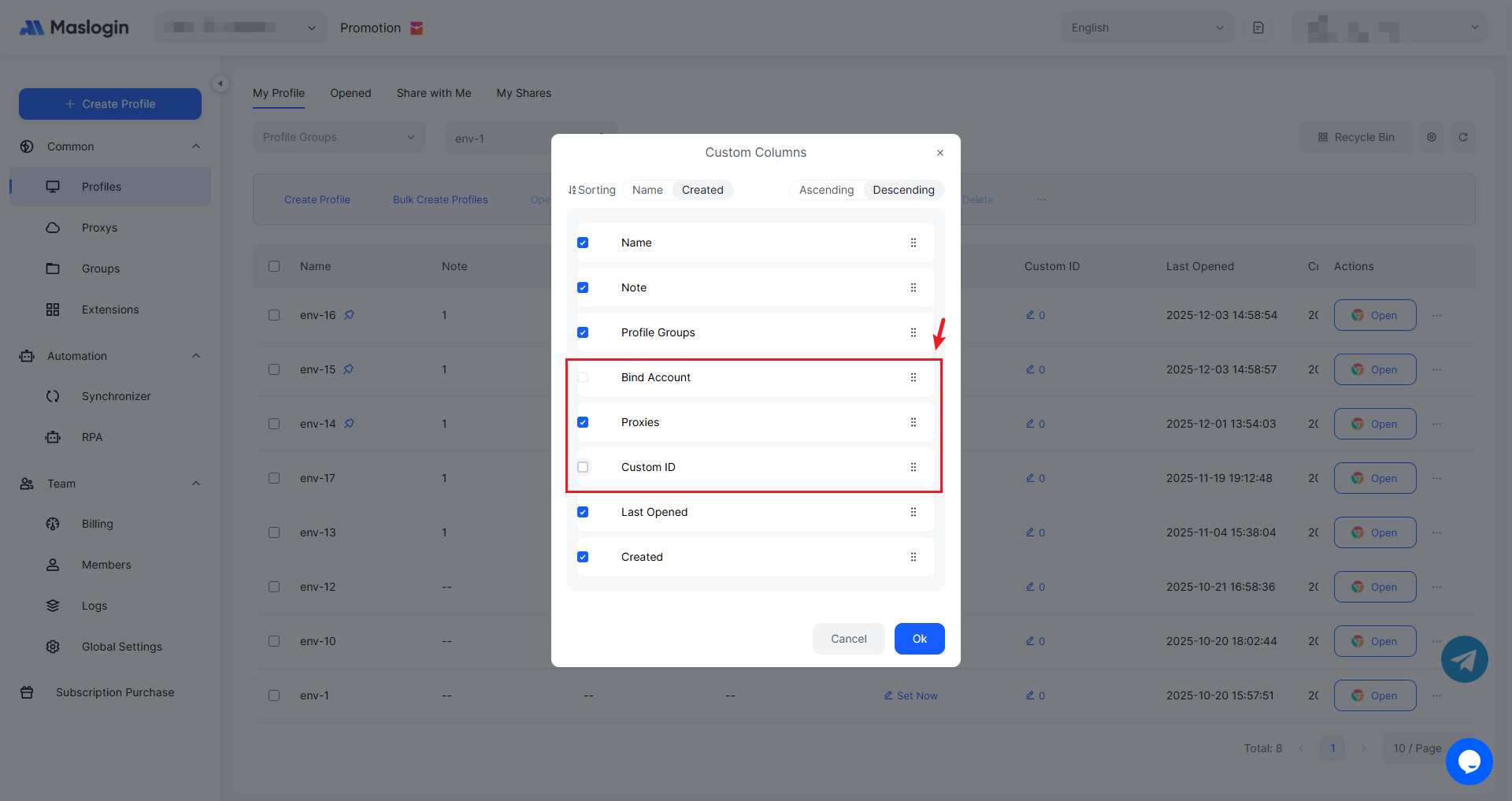
With simple checkbox settings, you can highlight the most important fields in the list while hiding non-essential fields. This flexible field configuration greatly improves readability and operational efficiency.
Profile Filtering
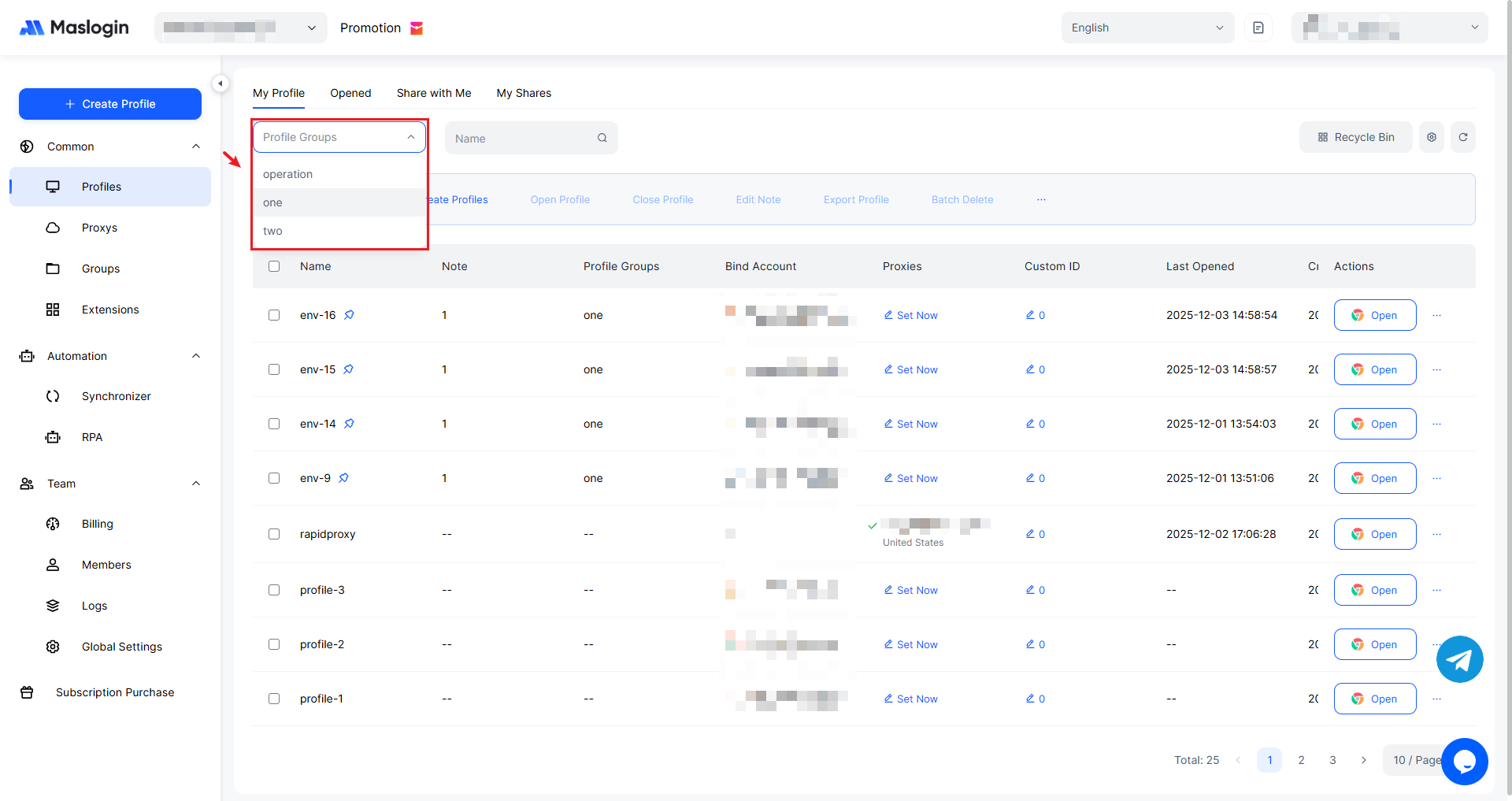
Filter by Group
Select a group in the profile group selector to view profiles under that group.
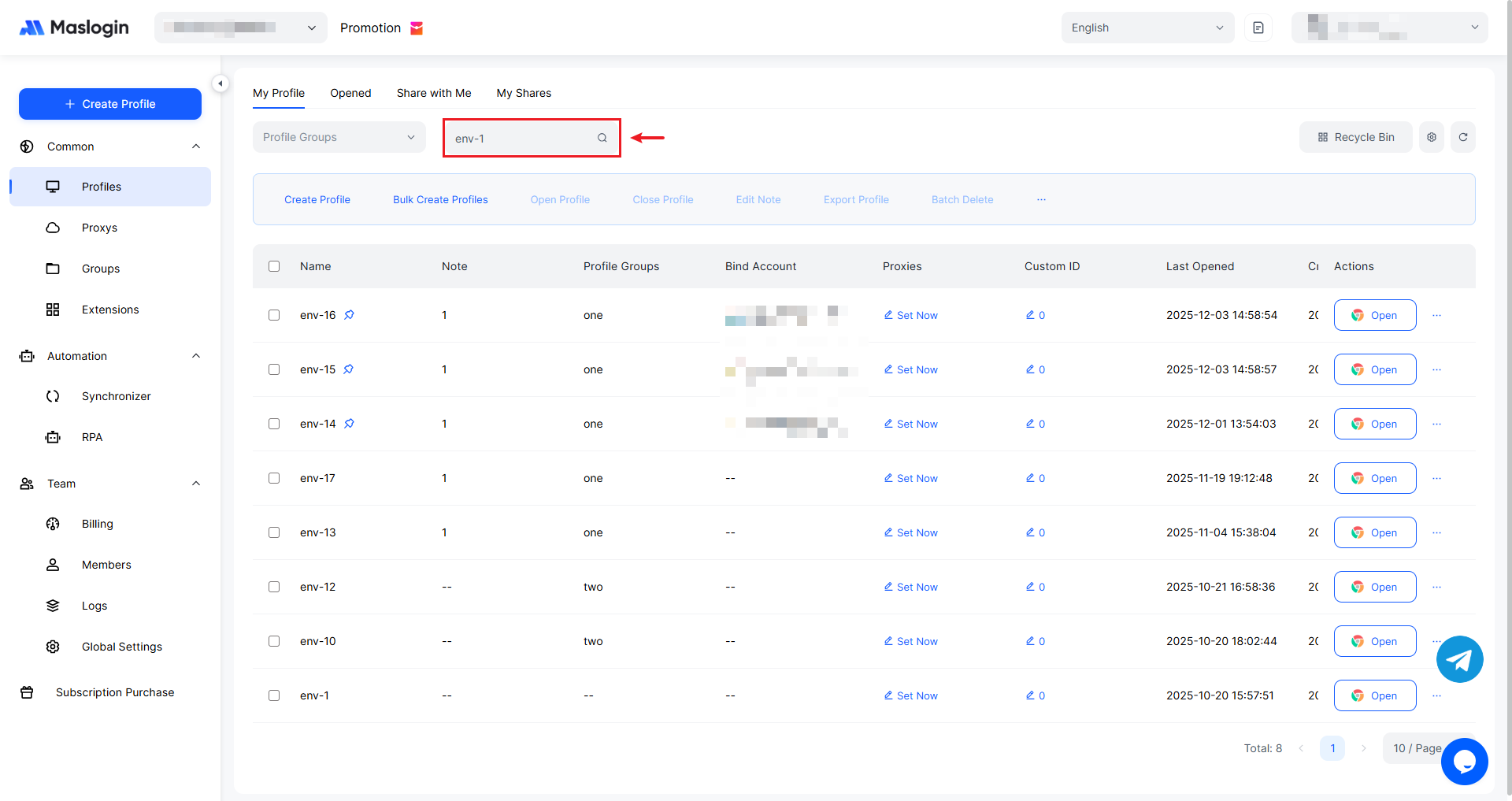
Filter by Name
Enter a name string in the name search box and use the list to find all profiles that match the name or have that string as a prefix.
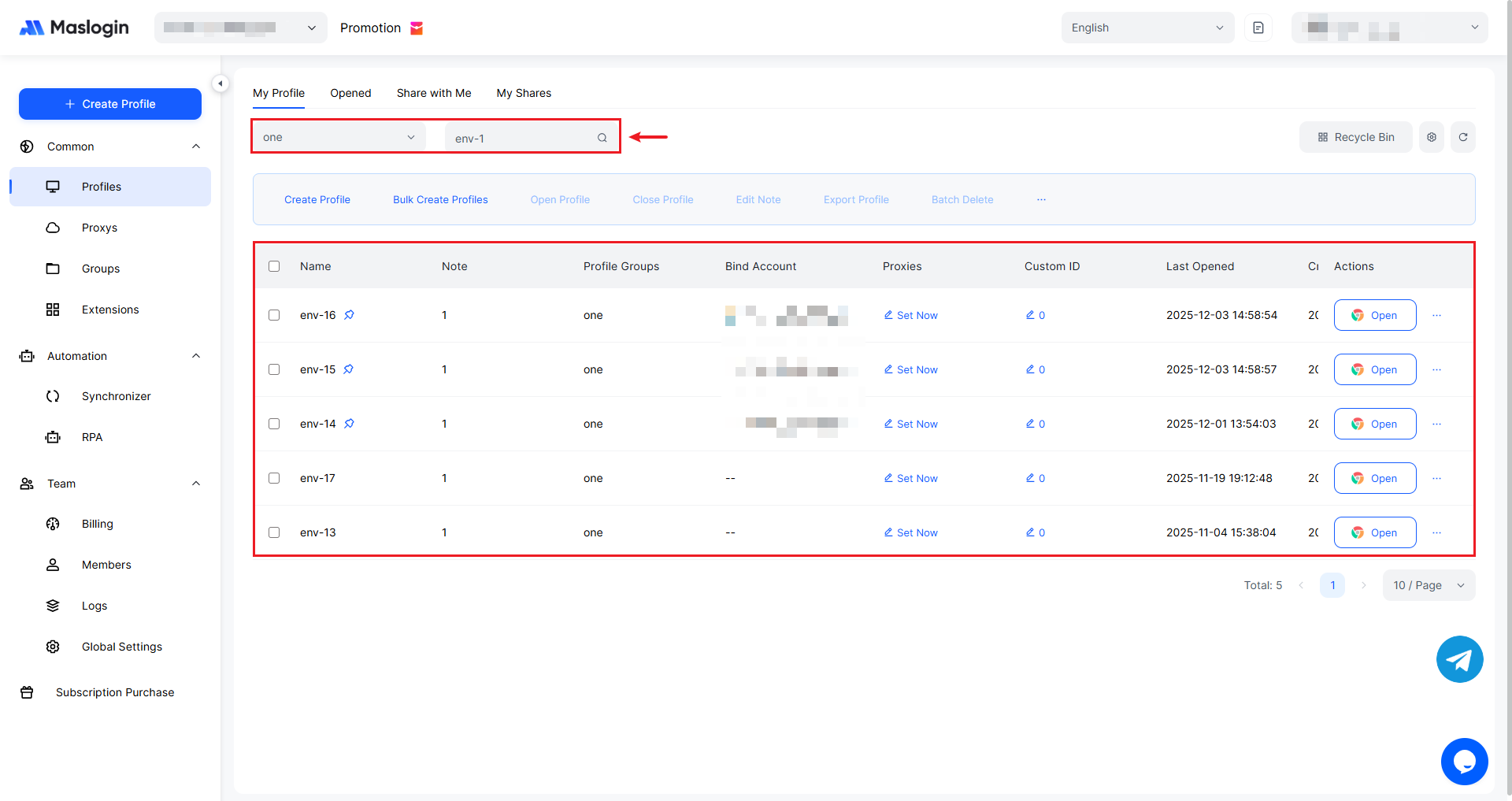
Filter by Group and Name
Set a group and enter a name to filter profiles using both conditions.
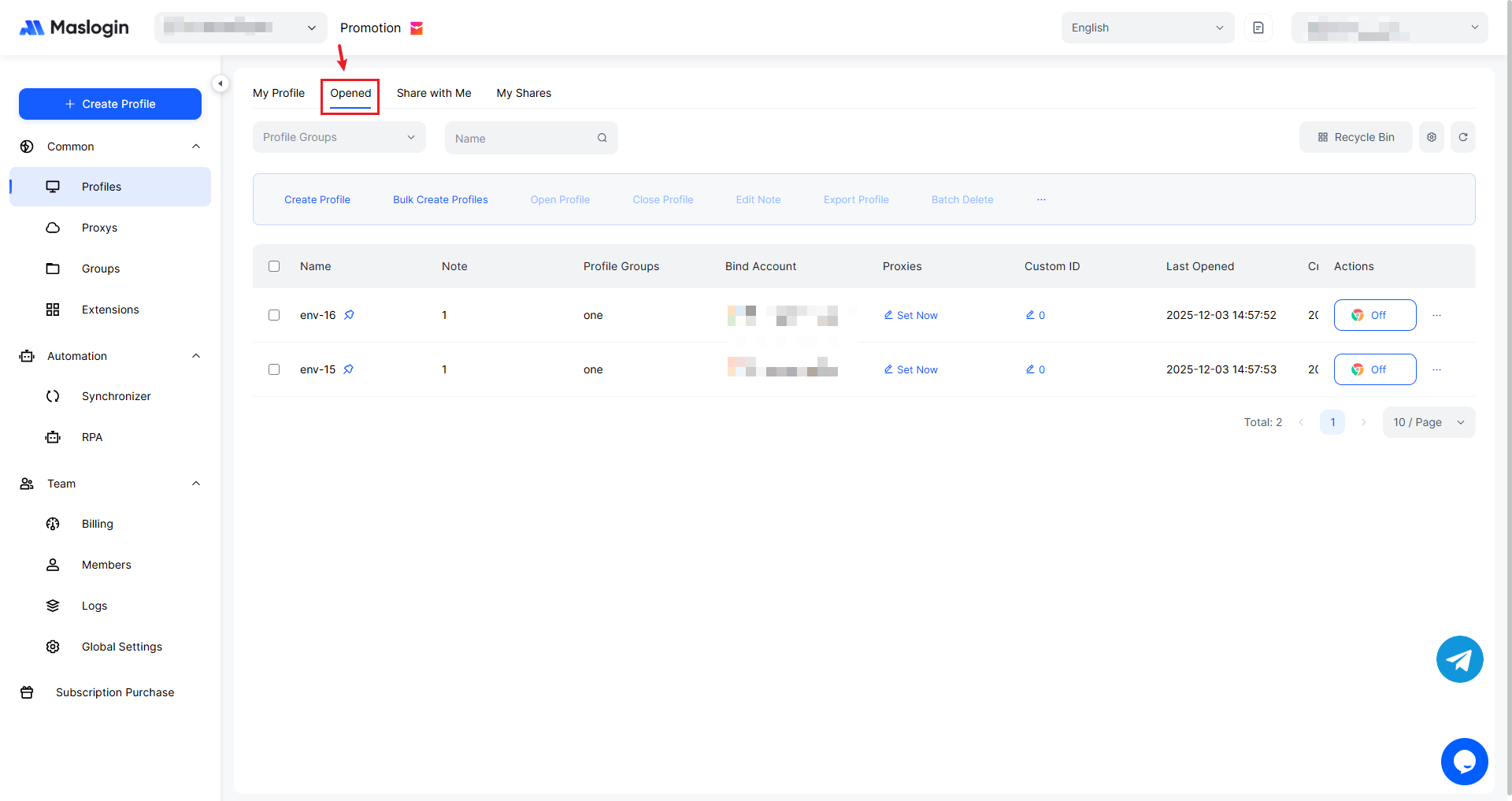
Manage Opened Profiles
View and manage profiles that are currently opened.
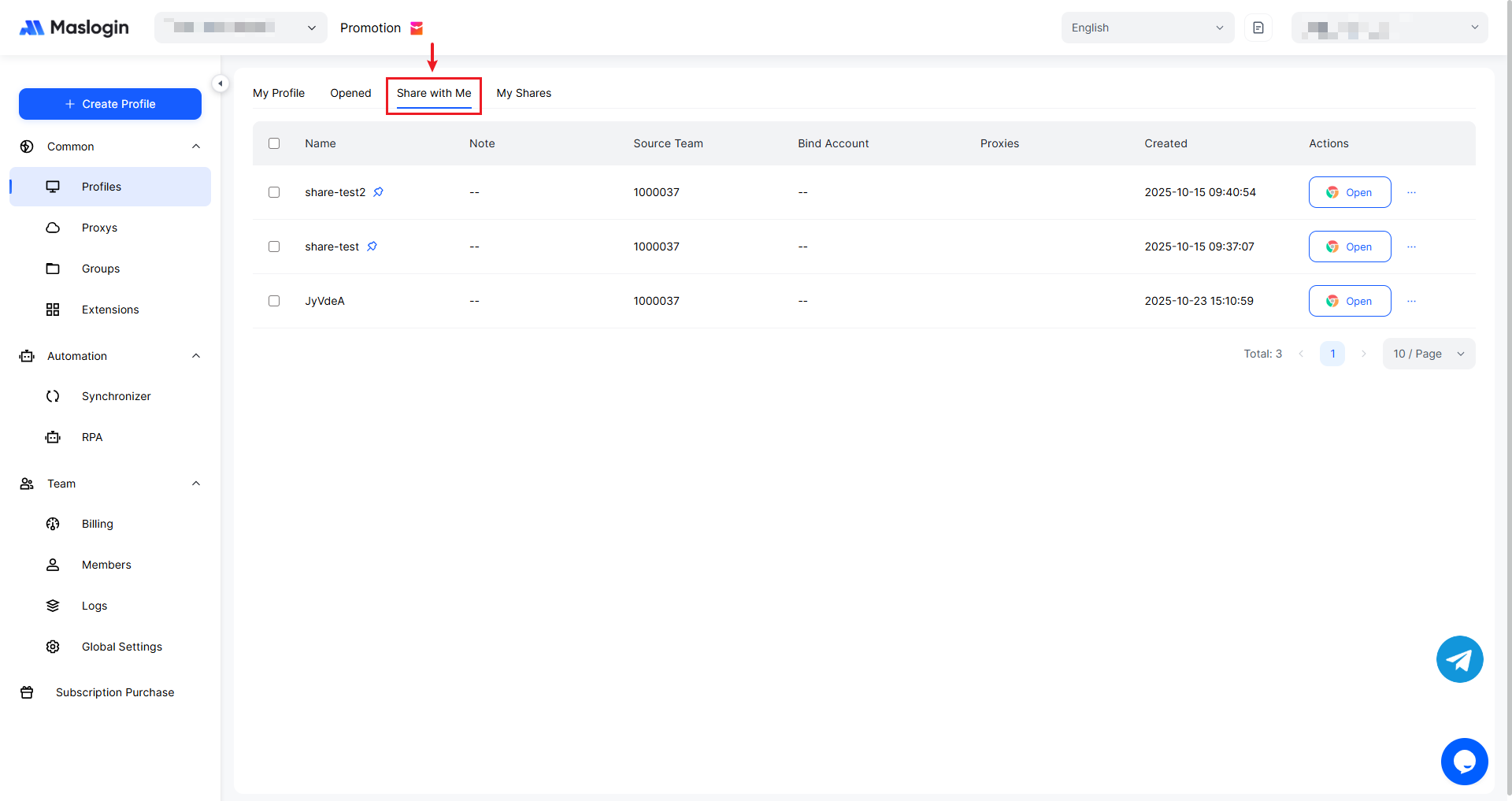
Manage Profiles Shared with Me
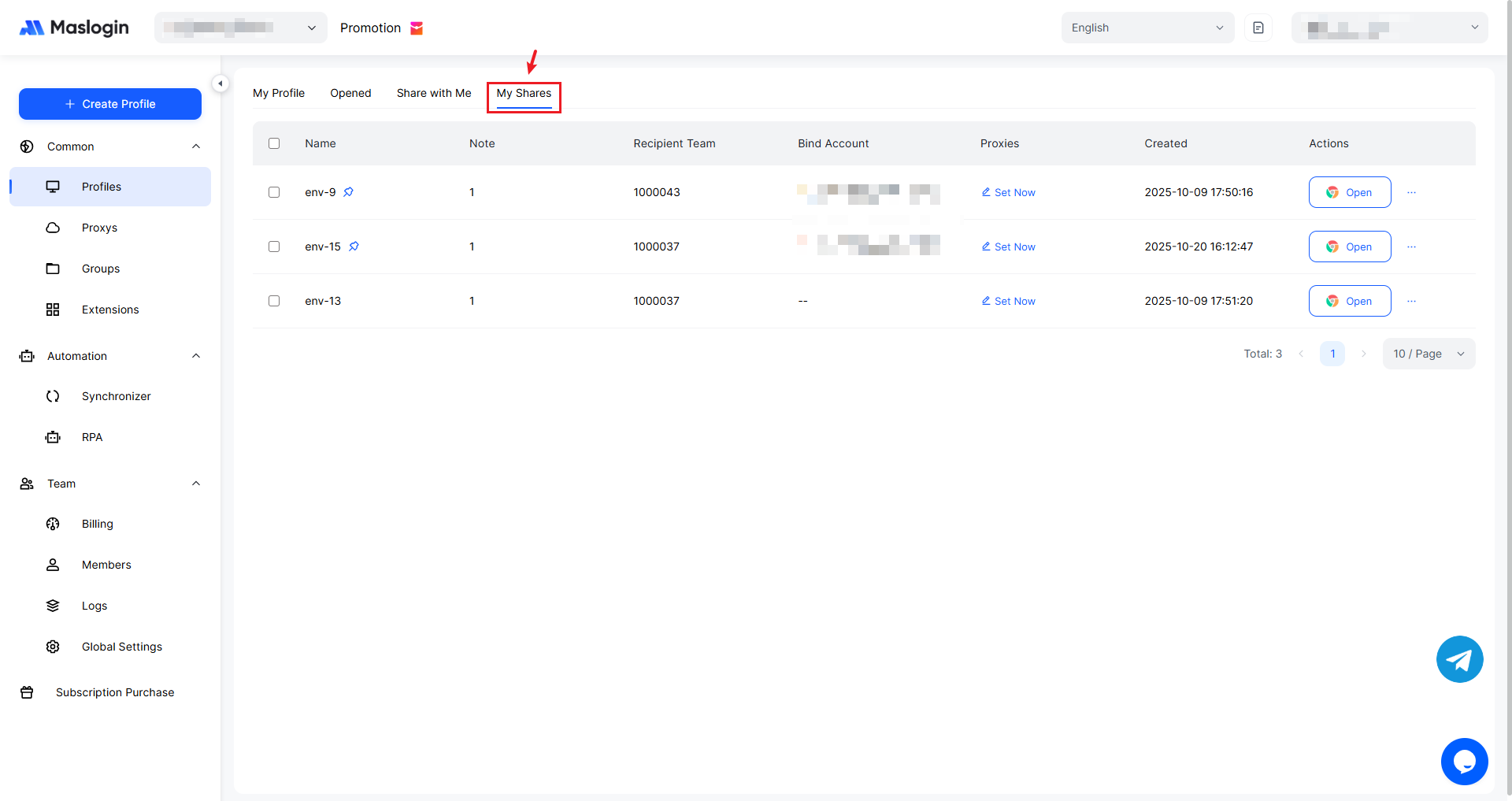
Profiles shared to your team by other teams are viewed and managed here and are not shown in the “My Profile” profile list.
My Shared Profile Records
Profiles shared out from your team are still shown in the “My Profile” profile list. In “My Shares”, you can view all profiles you have shared.