Member Management – Create Group
by · MasLogin October 14, 2025
MasLogin supports creating different member groups for your team. Different groups can be assigned different operation permissions, making team management easier. Each team automatically generates two initial groups: Super Admin and Sub Admin. The Super Admin account is the user who created the team by default and cannot be changed. Groups for standard members are created later, with permissions set as needed, and can be edited. Below is a detailed guide on creating user groups.
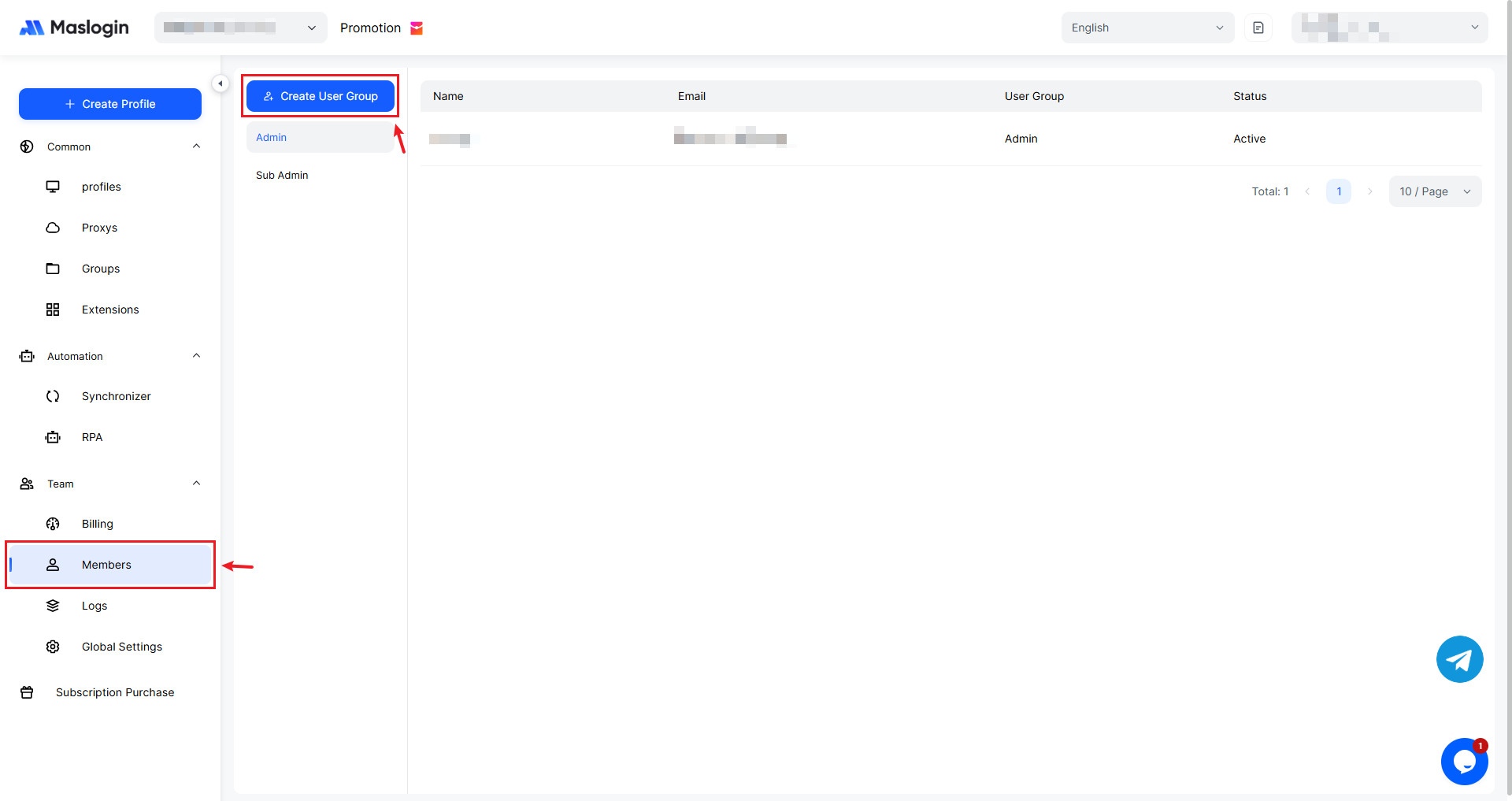
1. Click 【Create User Group】
A Super Admin or Sub Admin can click 【Create User Group】 on the Team Management home page.
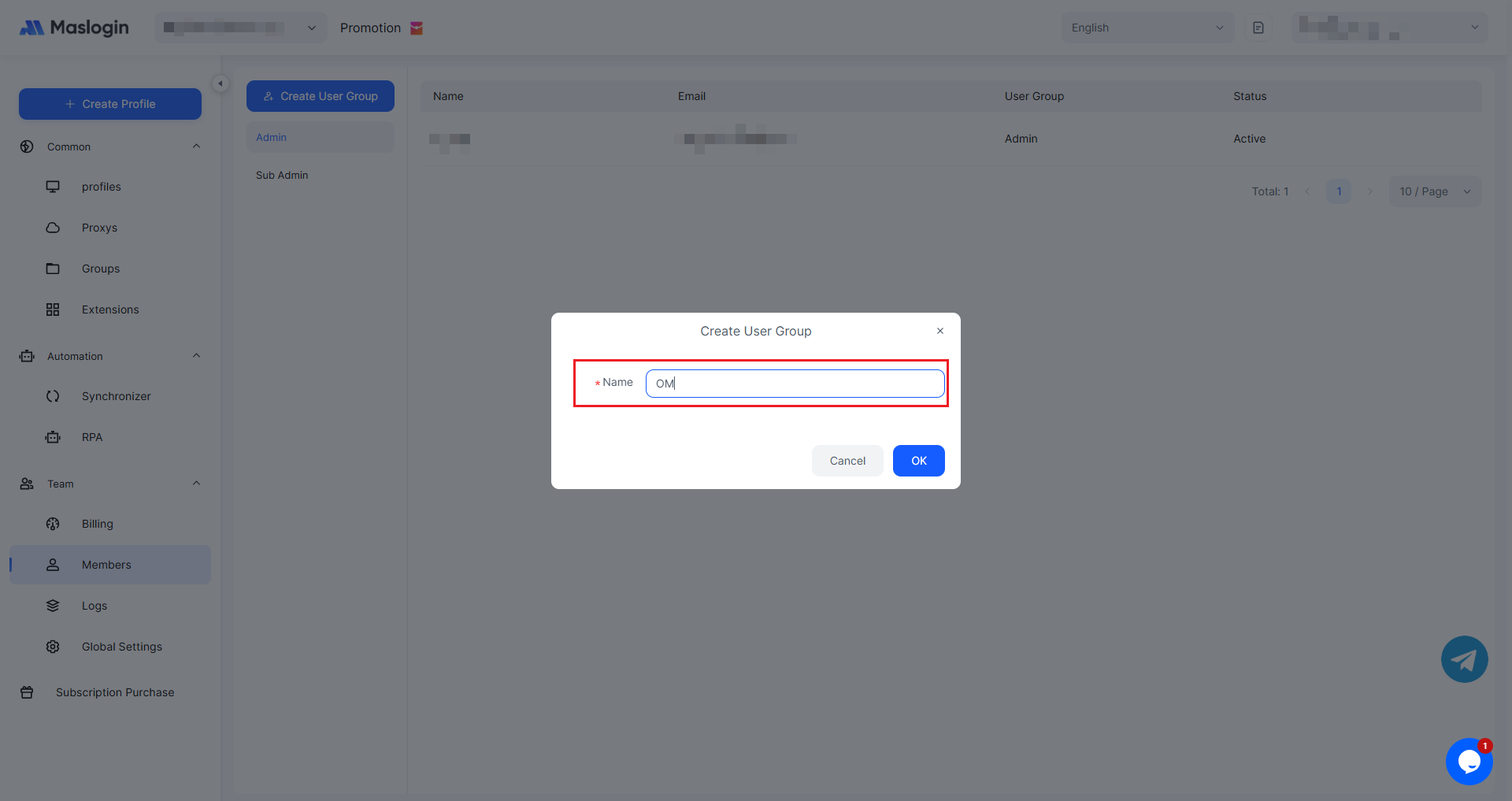
2. Name the User Group
Enter a user group name to complete creation. The name must not be the same as an existing user group.
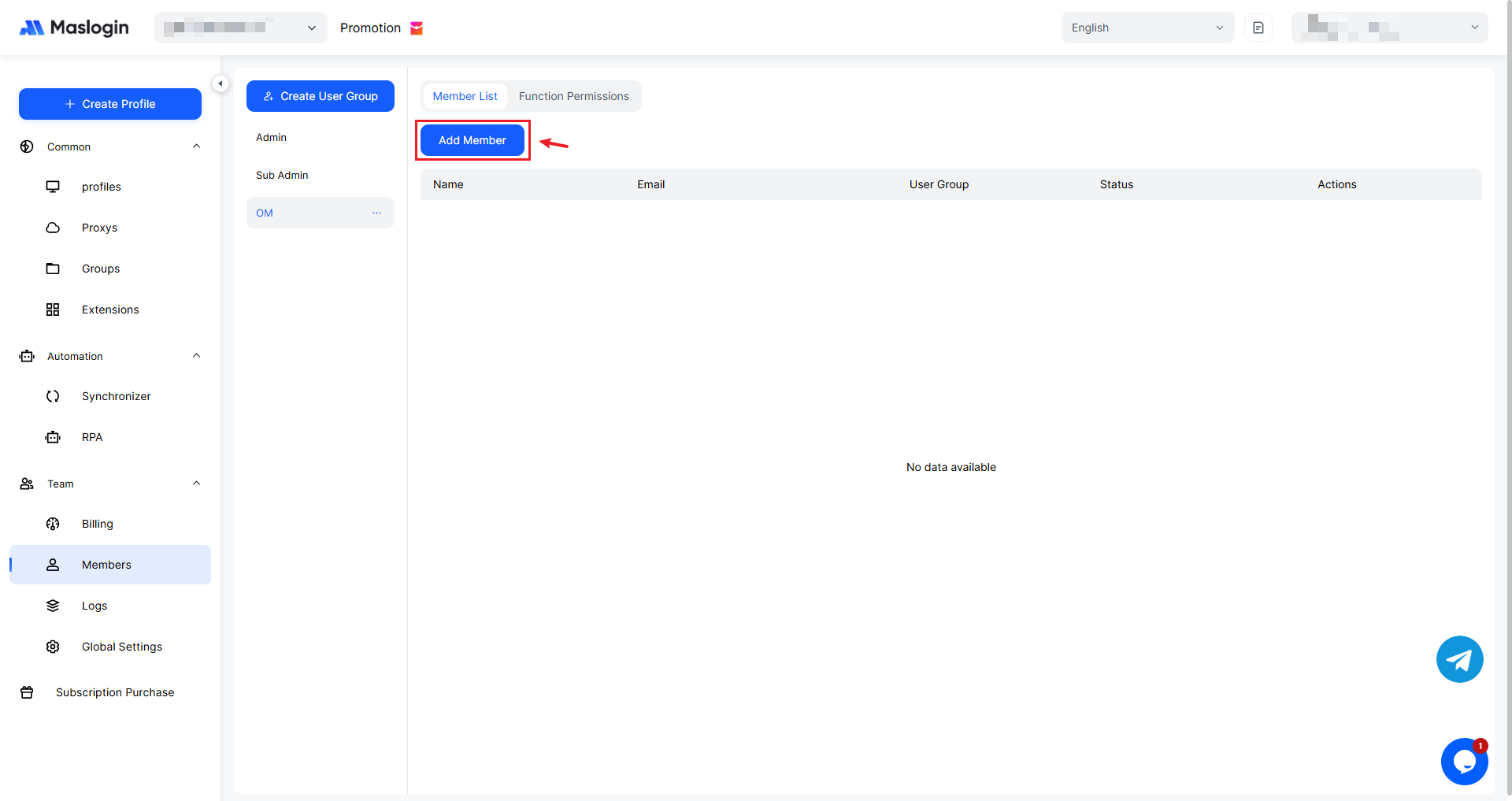
3. Add Members
After creation, you can add members to the corresponding user group.
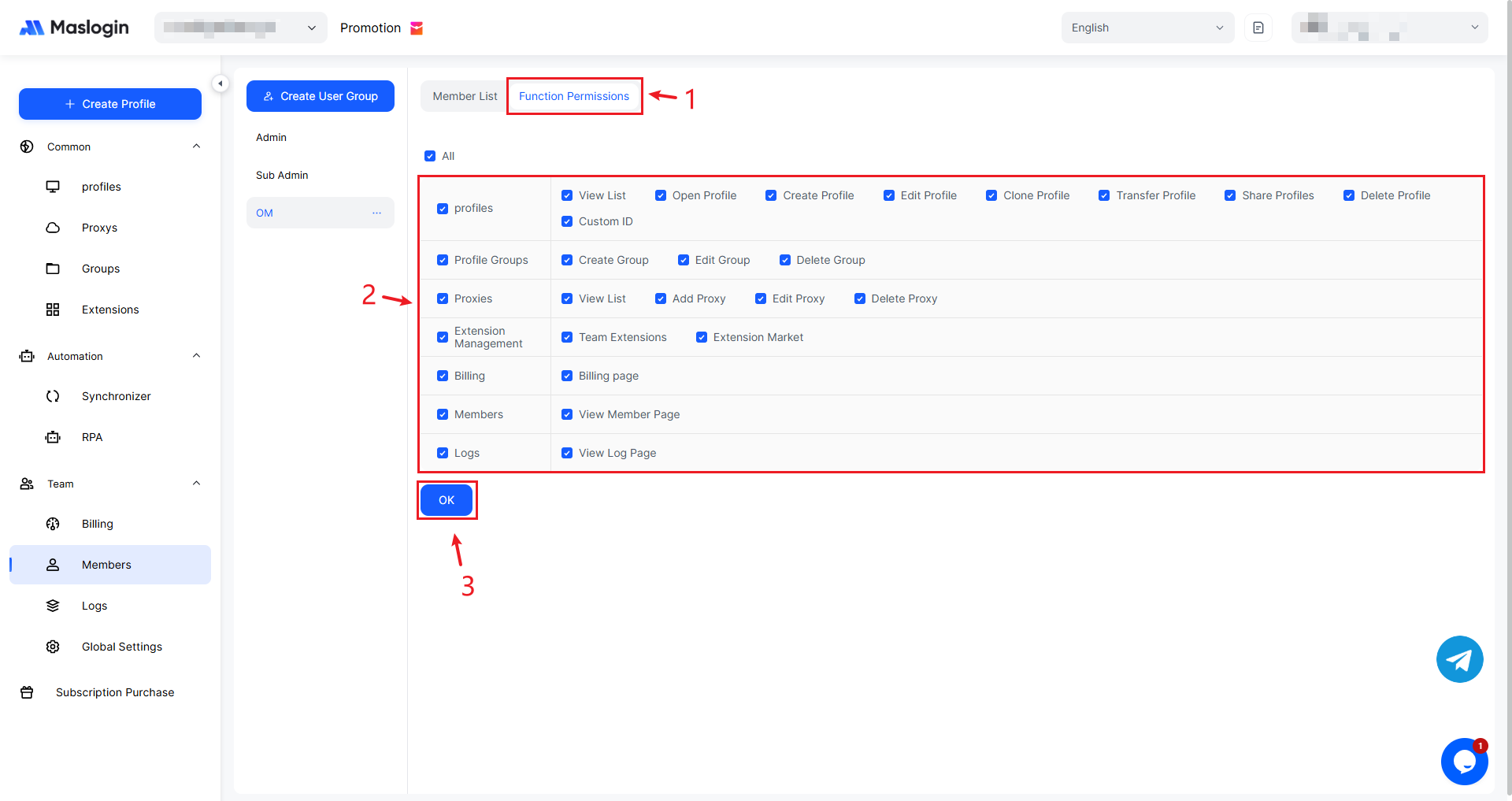
4. Configure User Group Permissions
Newly created user groups must be assigned permissions in 【Feature Permissions】, otherwise they will have no permissions.
How to Edit/Delete a Created User Group?
In the user group management list, click the “...” for the user group you want to delete.
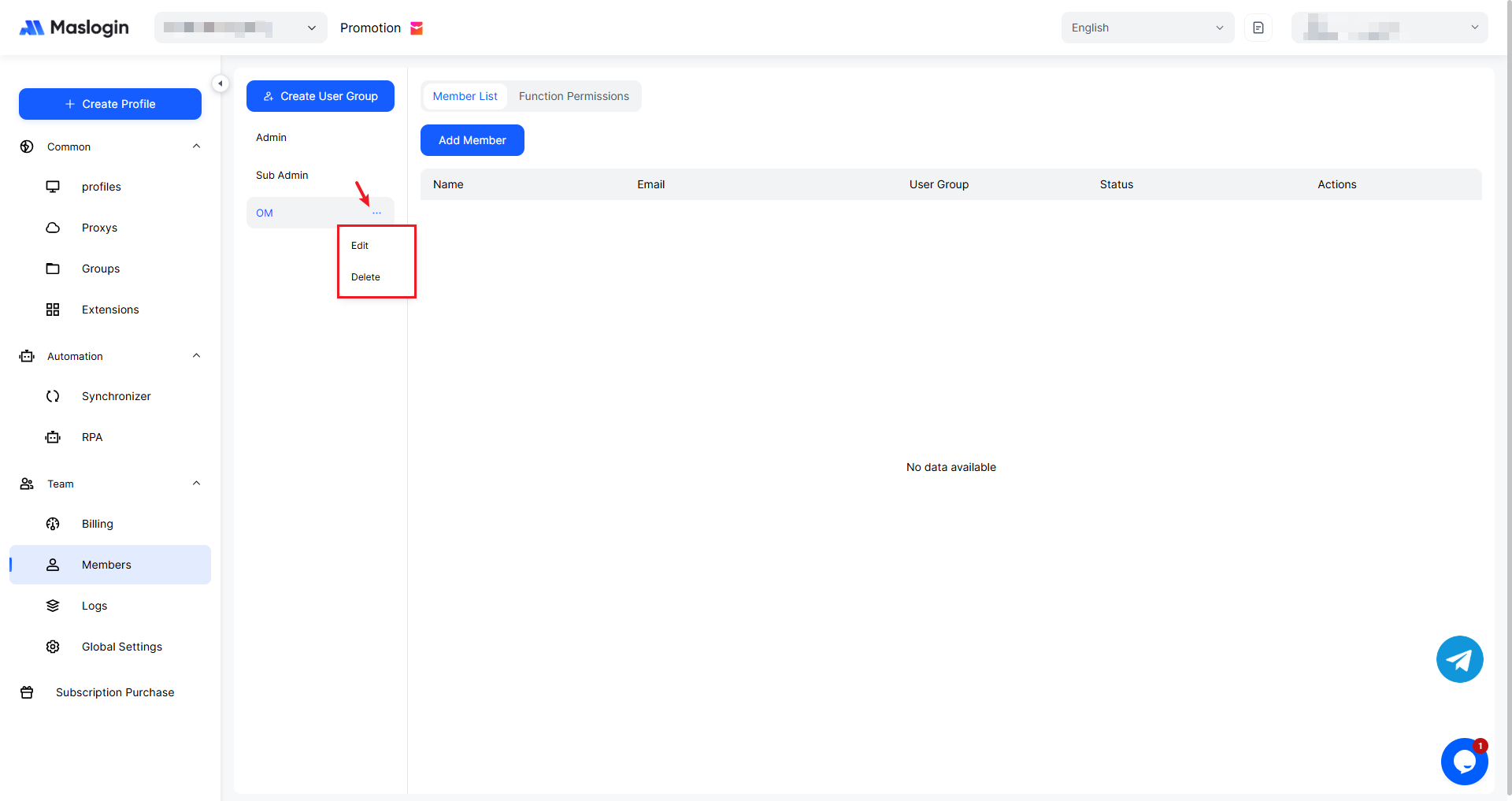
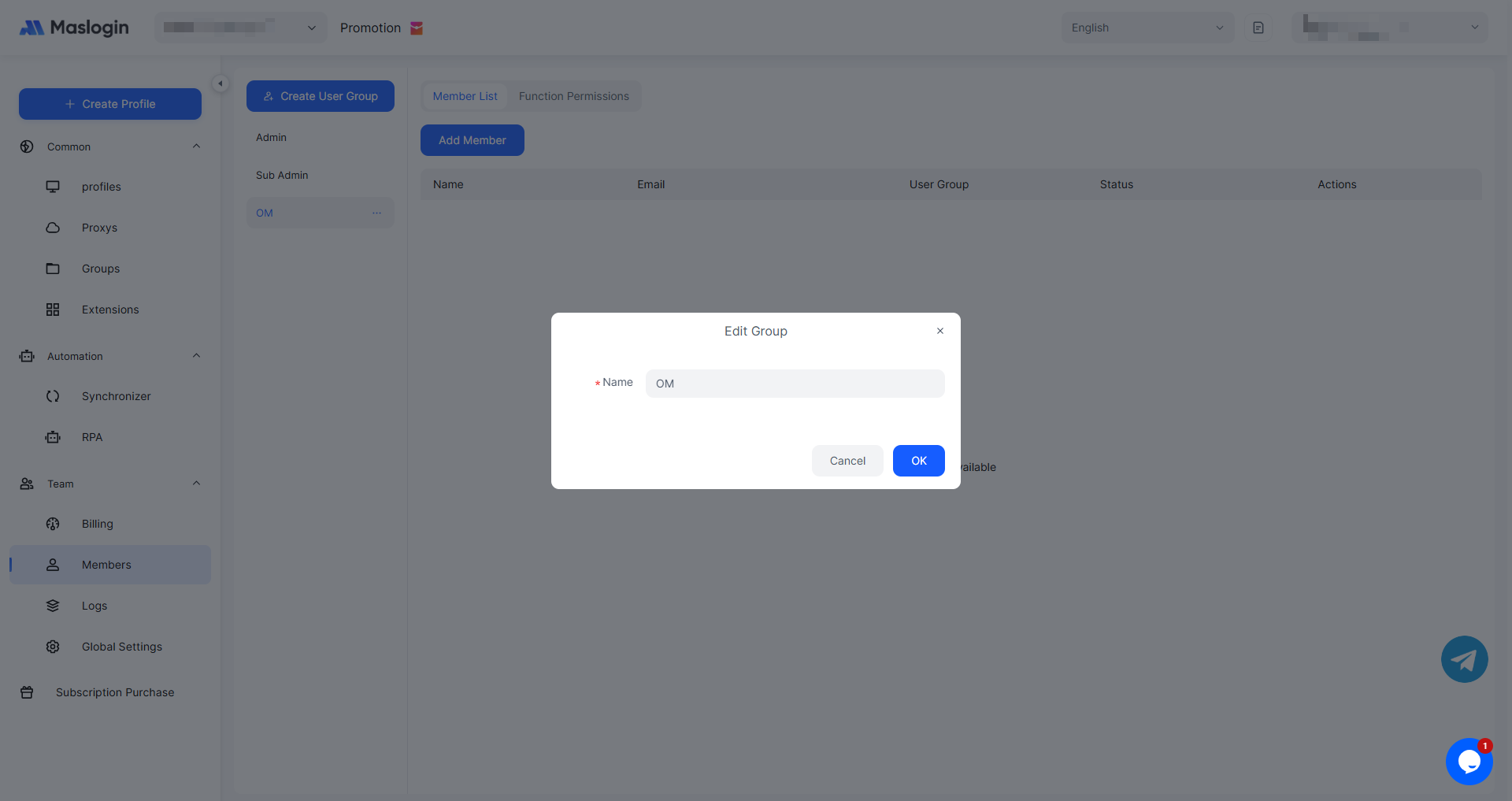
You can edit the user group name.
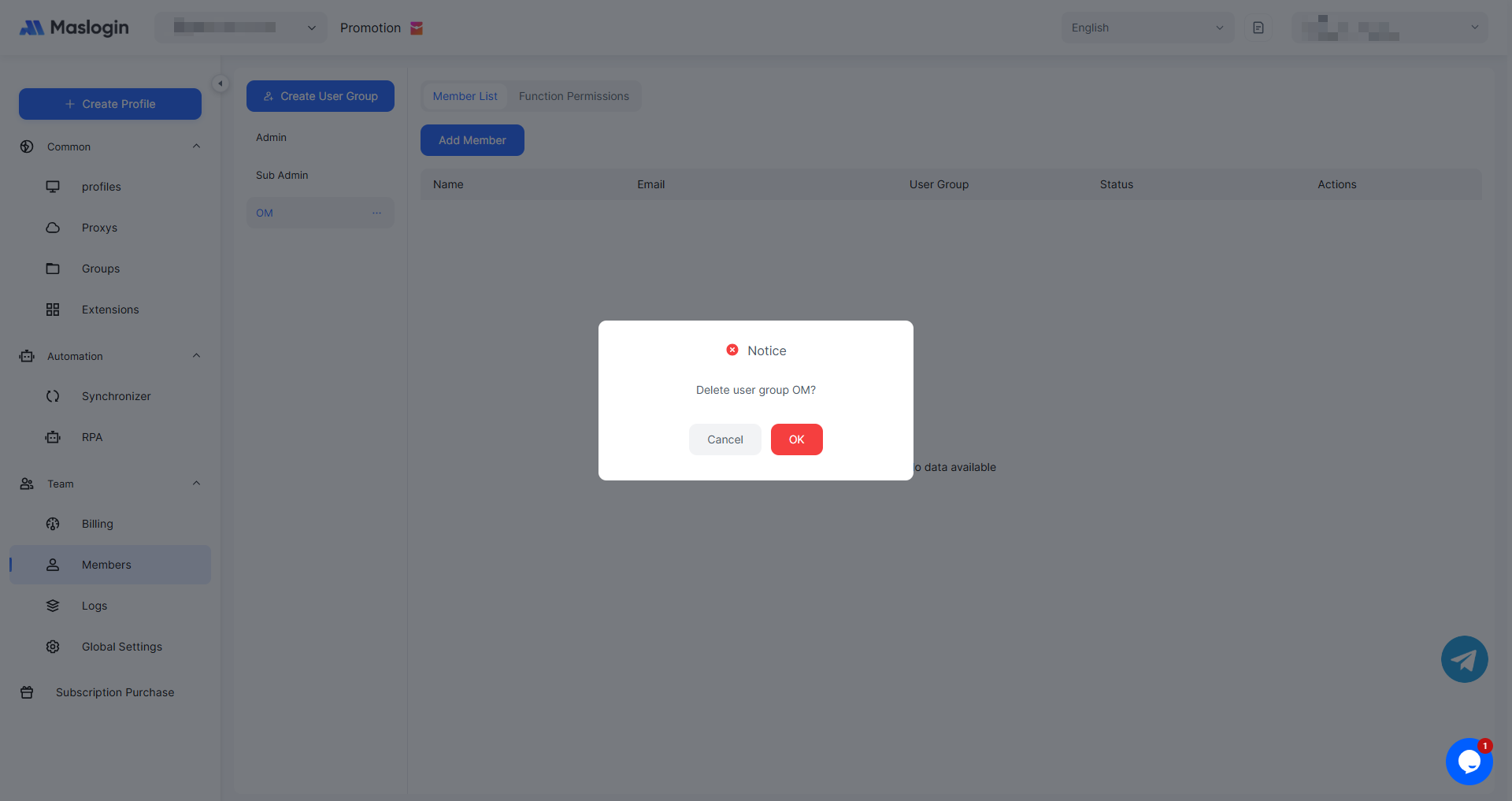
When deleting a user group, members in the group will not be retained.
Note: Only Super Admin and Sub Admin have permission to manage user groups.