Profile Management – Share Profile
by · MasLogin · October 13, 2025
By sharing profiles, you can optimize resource allocation and edit profiles across teams.
Open the Profile List
In the profile list, click “…” on the profile you want to share, then select “Share” from the expanded menu.
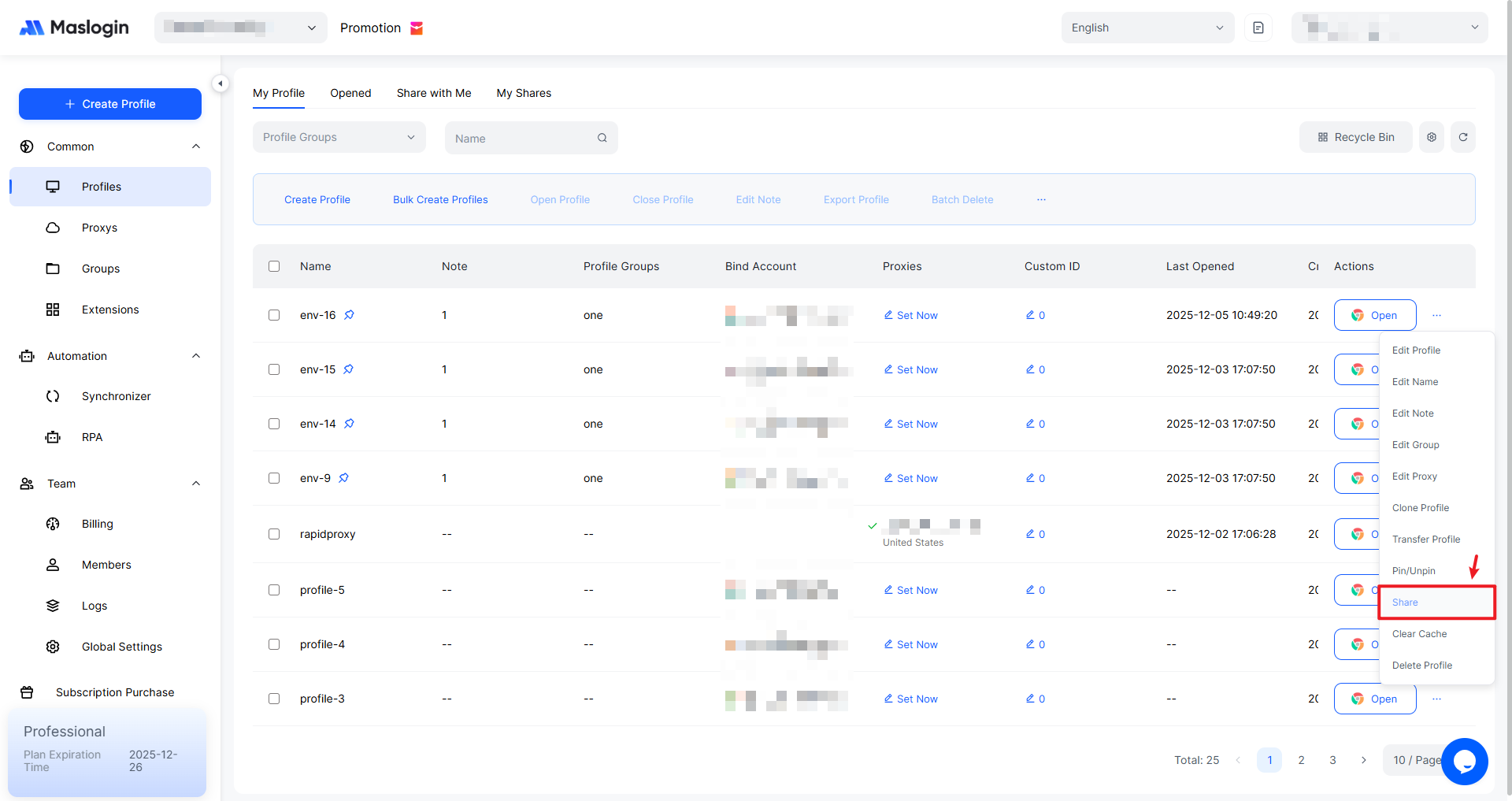
Share a Profile
Fill in the sharing details and click 【OK】 to complete the profile sharing.
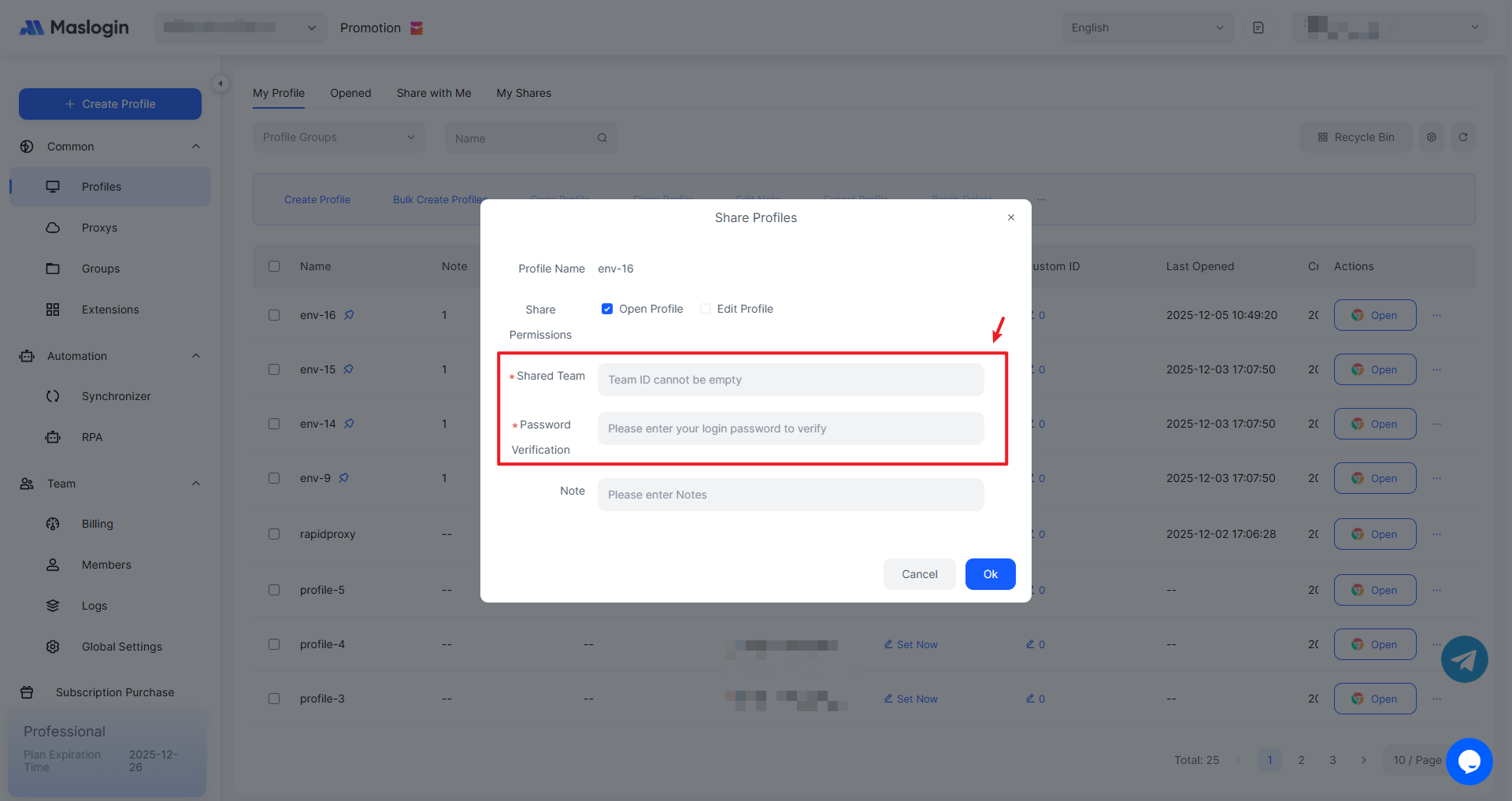
- Sharing Permission: Set the operation permissions for the shared profile.
- Target Team: Enter the Team ID of the team that will receive this profile.
- Password Verification: Enter the current account’s login password for verification, not the receiving team’s password.
- Note: Add details about this sharing action, such as the reason for sharing or the profile’s special purpose, to make it easier to review and manage later.
In 【My Shares】, you can view profiles shared with other teams. If you want to stop sharing, click “···” under Actions to find the option to unshare.
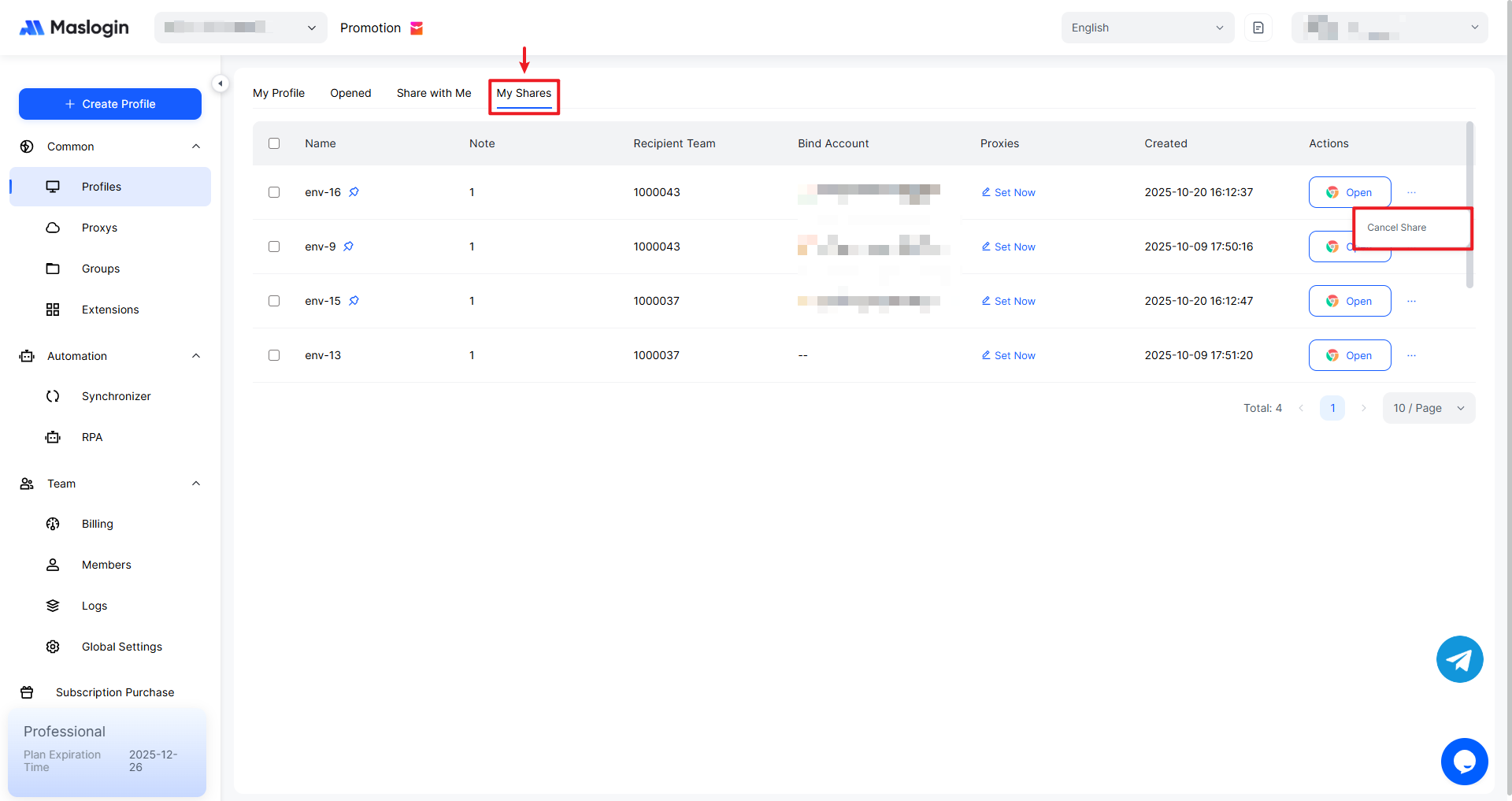
Note: The profile configuration, cookies within the profile, and information such as accounts and proxies are shared together. Make sure you set appropriate sharing permissions before sharing.
View Shared Profiles
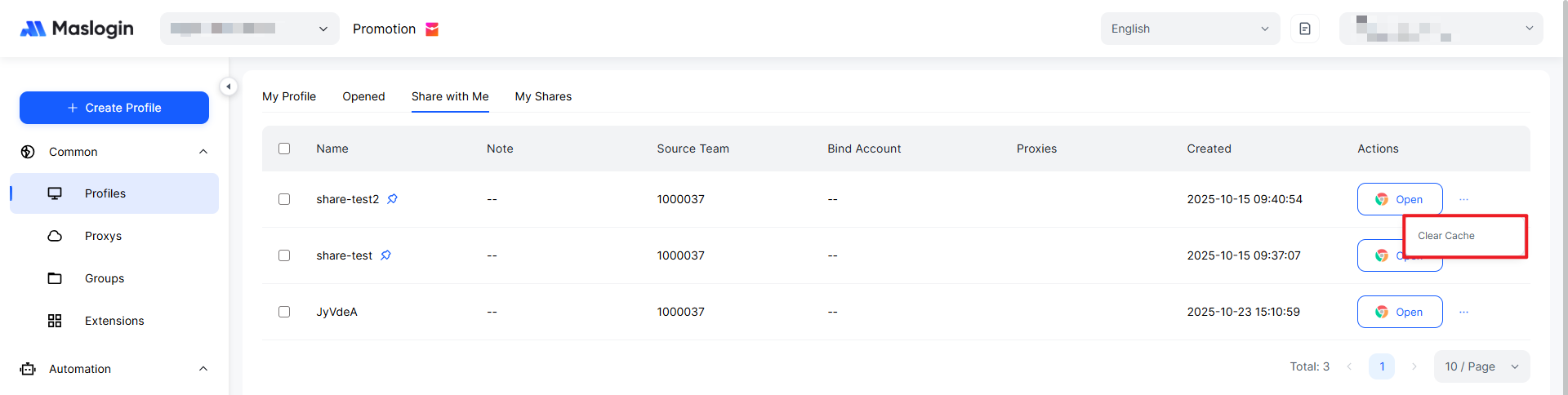
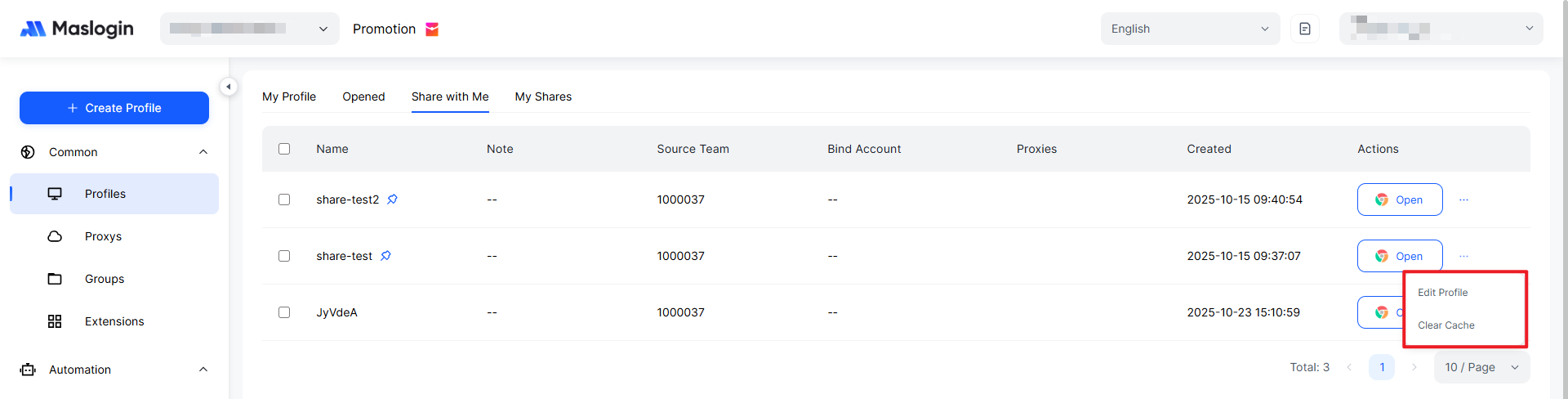
The receiving team can view the shared profiles under 【Shared with Me】.
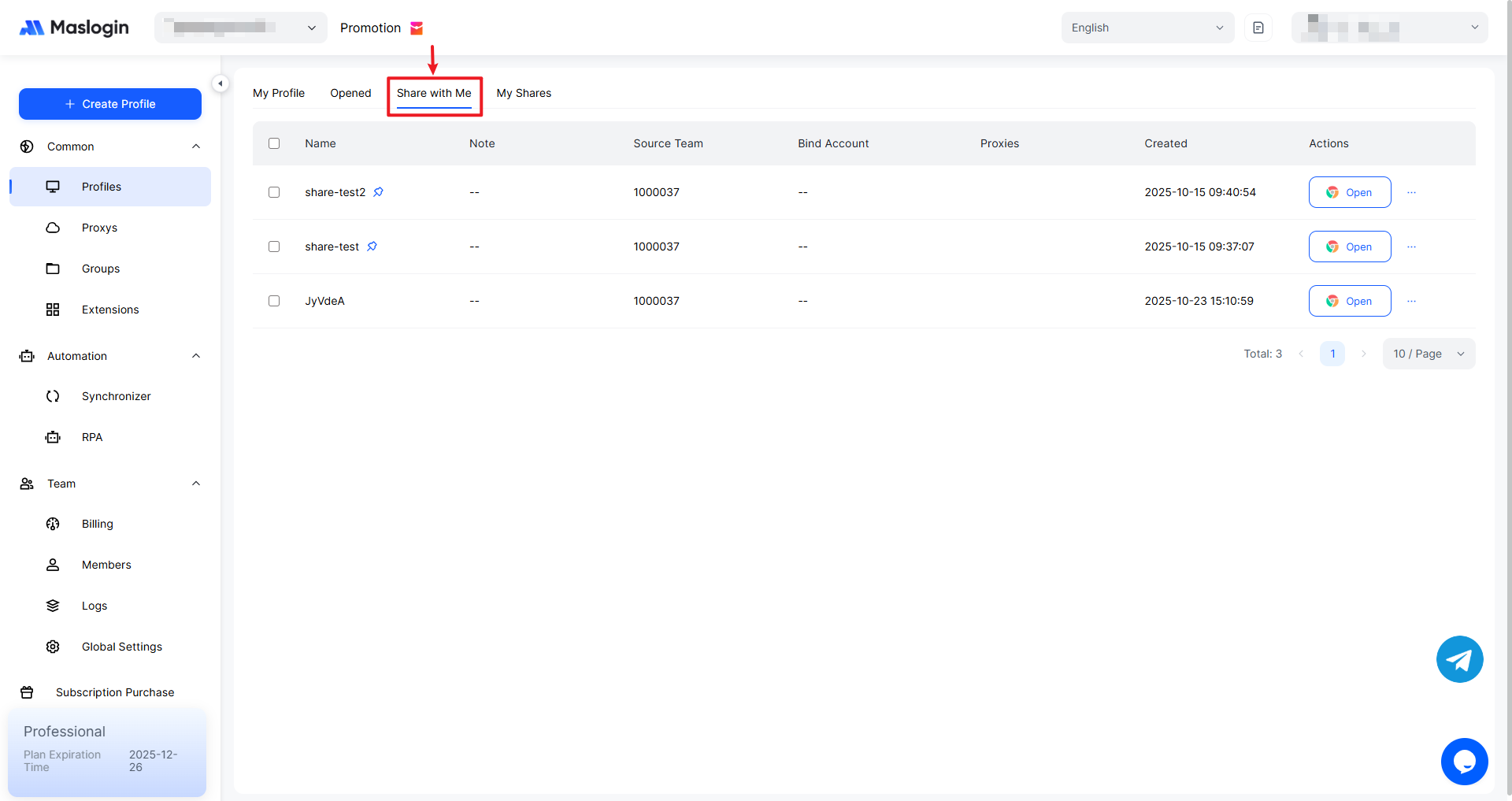
The permissions available for received profiles depend on the sharing settings.
How to Find the Team ID
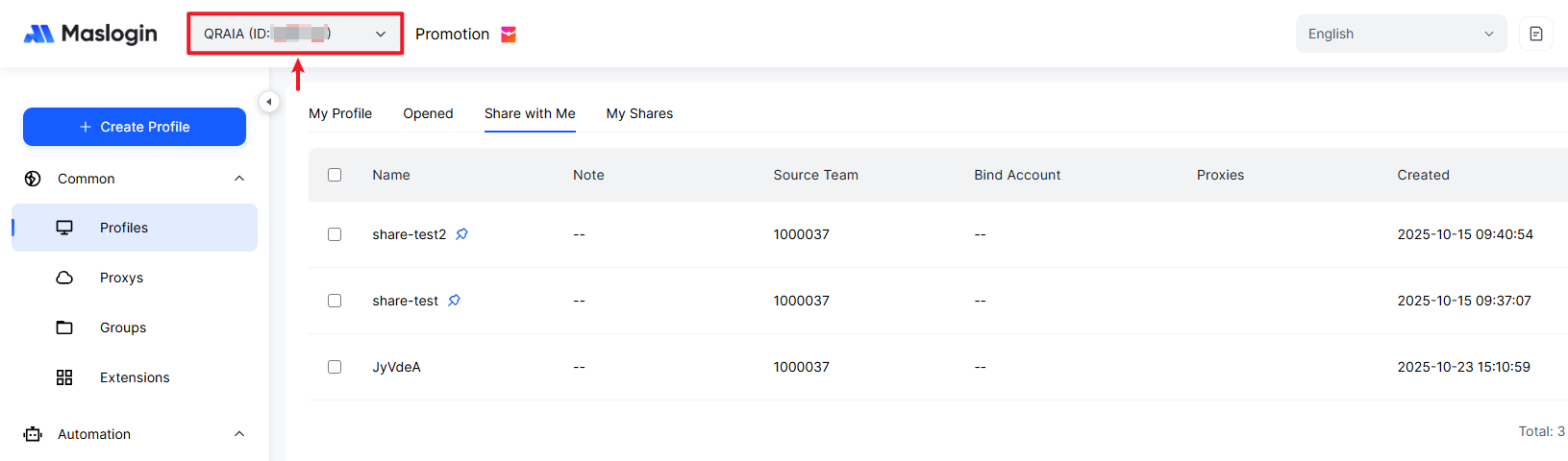
Near the top-left area of the app, you can view the team name and Team ID.
Note: A shared profile still remains in the original team. Compared with transferring a profile, sharing provides better permission control.