Global Settings — Bookmark Settings
by · MasLogin · November 25, 2025
Bookmark settings in the browser are a highly practical feature that lets you push one unified set of bookmarks to all environments. You only need to upload a bookmarks file once here. After that, every environment will automatically load this set of bookmarks the next time it’s opened—helping teams standardize frequently used sites and eliminating the need to add bookmarks manually in each environment.
1. Bookmark Settings
- Go to Global Settings > Bookmark Settings.
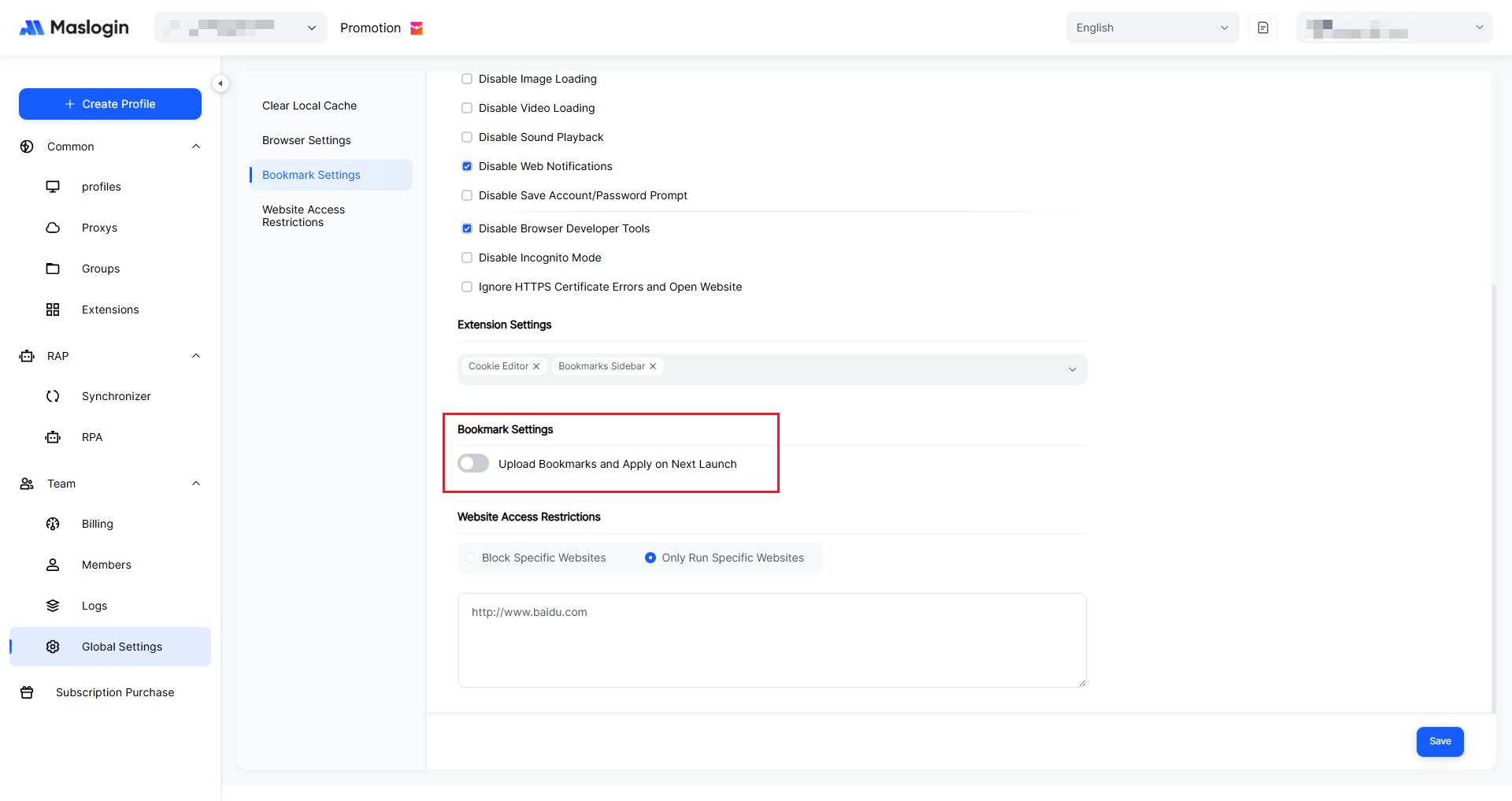
- Click to upload the bookmarks HTML file. After uploading and saving, the bookmark settings will take effect the next time all environments are opened (new bookmarks will be appended only and will not change existing bookmarks).
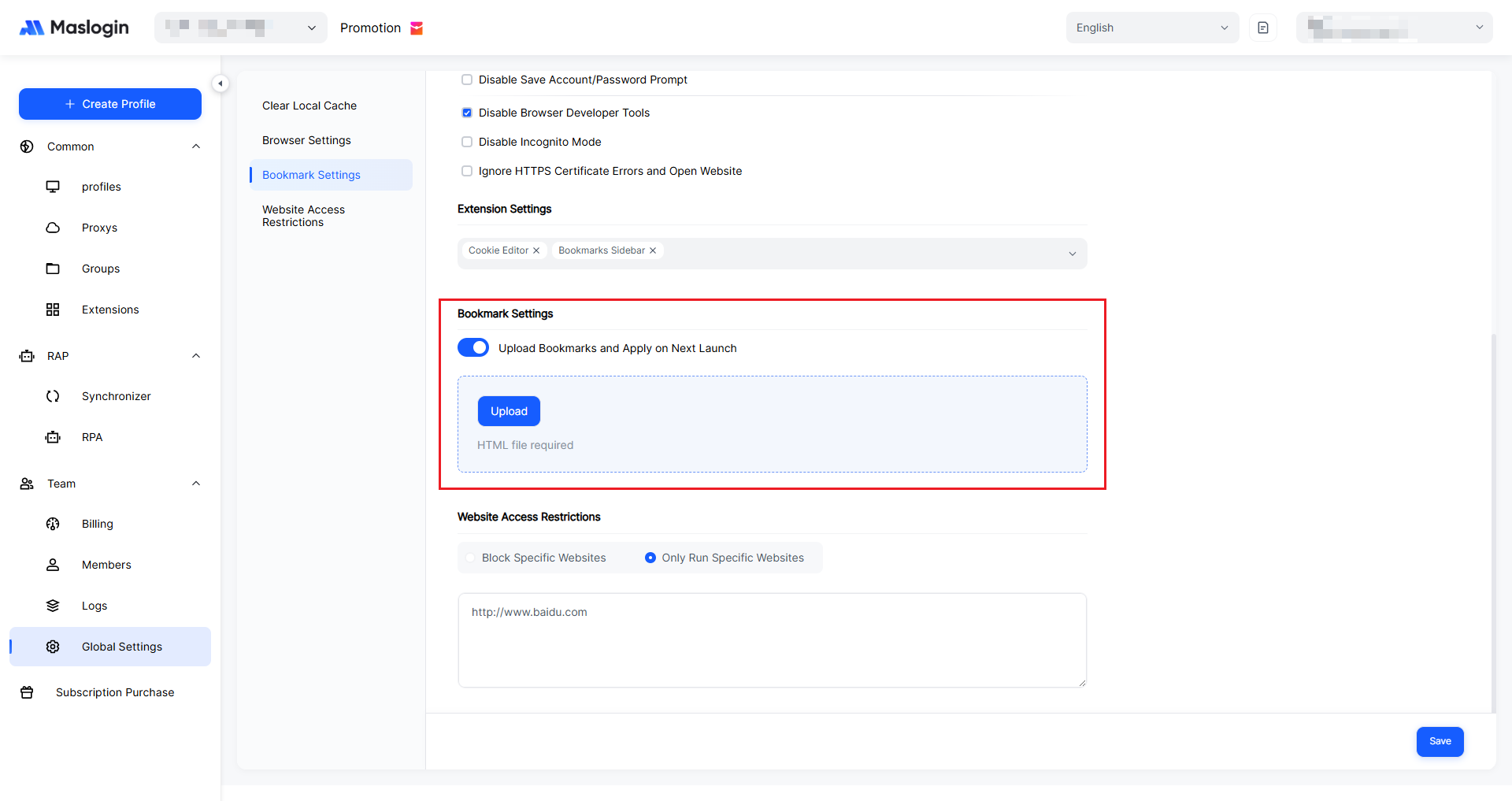
- Close and reopen each environment, and you will see the unified bookmarks in the browser’s bookmarks bar.
2. How to Export Bookmarks from Chrome
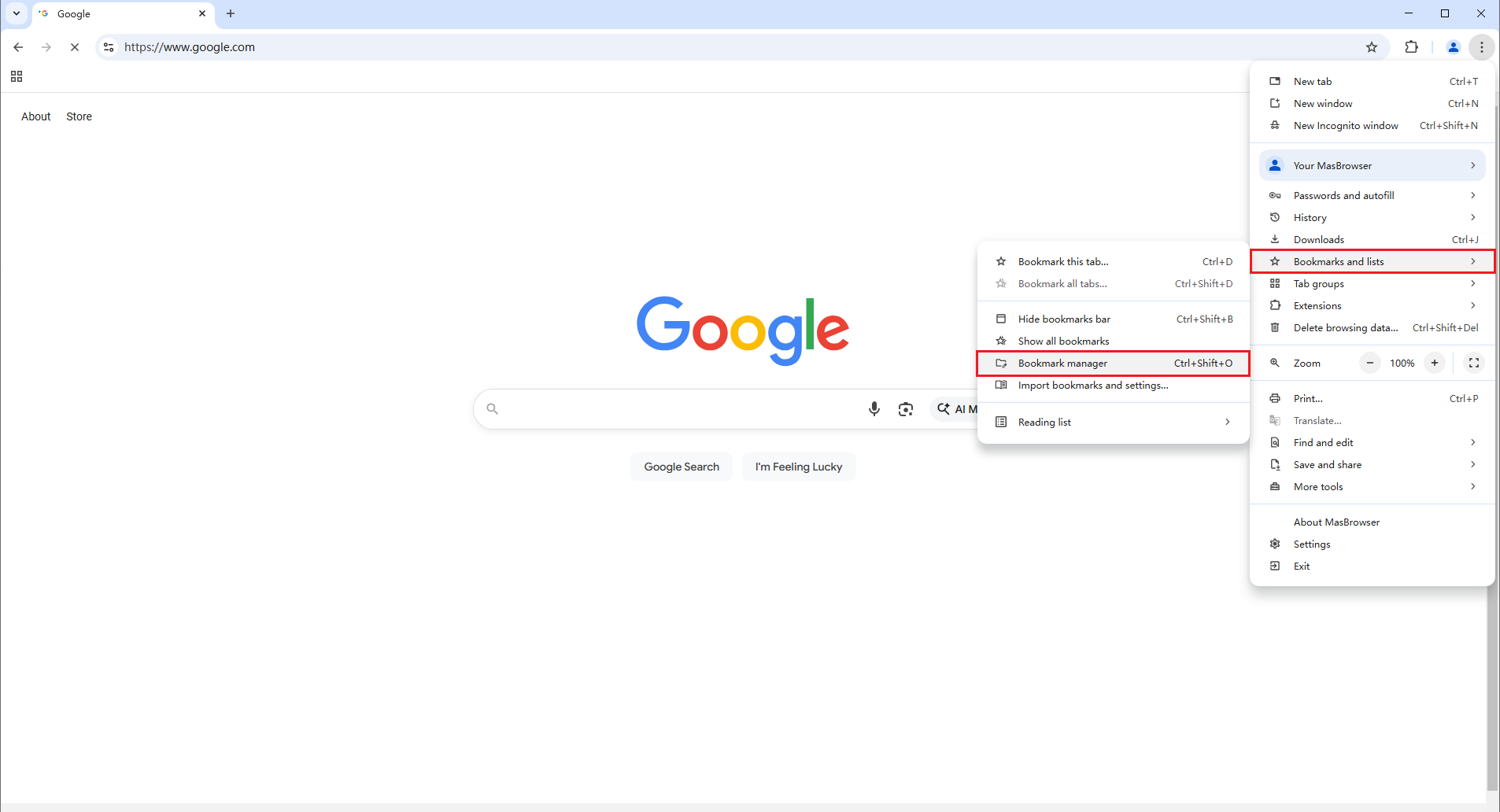
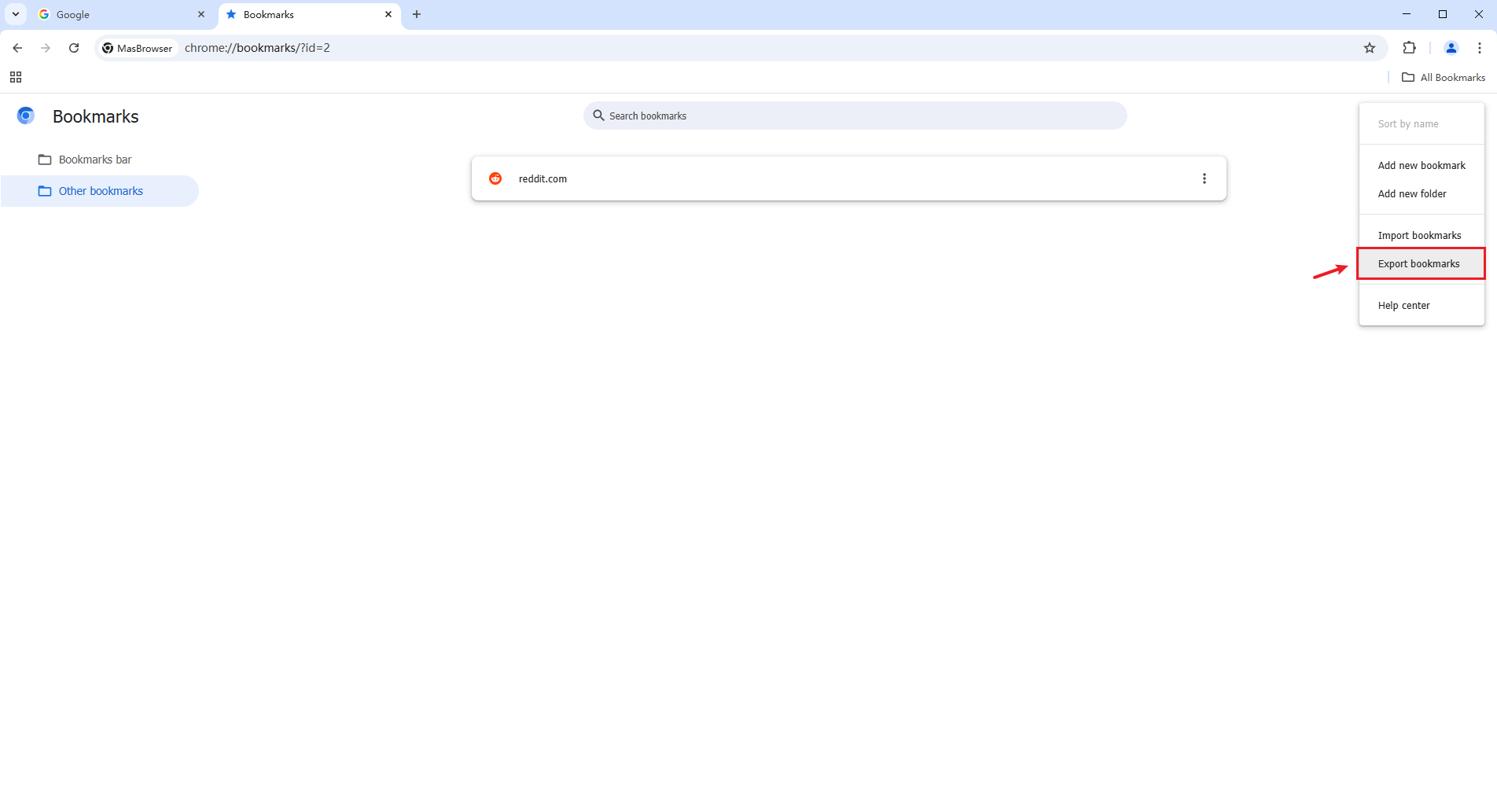
- Click the Chrome settings menu, then go to “Bookmarks and lists” and “Bookmark manager”.
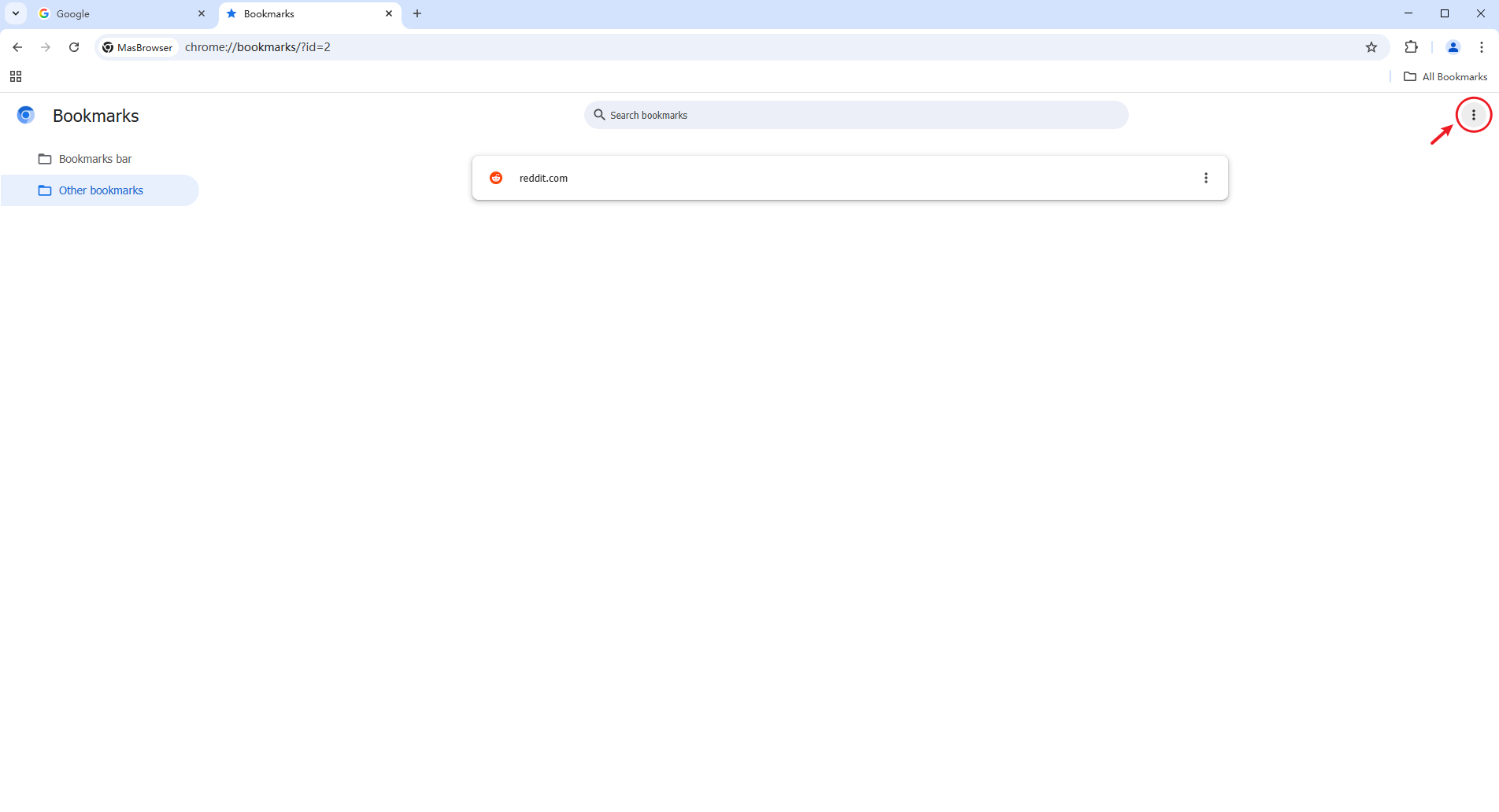
- Click the three-dot menu in the top-right corner and export bookmarks.
3. Recommendations
- Organize your frequently used sites in your local browser first, then export and upload the bookmarks HTML file.
- If you need to update the unified bookmarks later, simply upload a new HTML file and save.
- If you don’t want to apply unified bookmarks globally for now, turn off the bookmark setting switch. New environment launches will no longer apply the global bookmarks policy.