The Worst Google Privacy Setting: Change It Now to Protect Your Data!
Do you frequently use Gmail, YouTube, or Google Search? If the answer is “yes”, then your privacy data may be silently collected and exploited. This article will walk you step by step through the most dangerous Google privacy setting and show you how to disable it, thereby improving your data security and privacy protection.
On this page
On this page
Anti-detect browser for multi-account operations
- Independent browser profiles
- RPA automation
- Team collaboration
Why care about Google privacy settings?
 (1) (1).png)
- Data tracking is everywhere: Google collects your search history, location data, device information, and ad click behavior.
- Personalized ads risk: Although Google claims this is for “better recommendations,” in reality it’s large-scale monetization of user data.
- Potential security threats: If data is leaked, hackers or malicious actors can exploit it for targeted fraud.
Recommended reading: How to prevent browser fingerprint tracking?
Step 1: Turn off “Web & App Activity”
In Google Account → Data & Privacy → Web & App Activity, you’ll see that Google records:
- Your location, IP address, browser and device info
- Your ad clicks and shopping history
- Even your contact search records
Suggested action:
- Click Pause to completely turn it off.
- Set an auto-delete period (3 months recommended).
Reference: [Google Web & App Activity official guide]
Step 2: Turn off “Location History”
Google by default saves all the places you’ve been, even if you don’t use Google Maps.
Risk: Others may view your entire movement history via your account.
Suggested action: Turn off Location History and set data auto-delete.
Step 3: Turn off “YouTube History”
Although it seems harmless, if you share a device, your search and watch history reveals your interests and habits.
Suggested action: Turn off or pause YouTube History.
Benefit: More unbiased video and search recommendations.
Step 4: Turn off “Ad Personalization”
Ad Personalization is central to Google’s data collection.
Risk: Advertisers can micro-target you based on browsing behavior.
Suggested action: In the Ad Center, turn off personalized ads to avoid being a “tagged” user.
Step 5: Review “Third-Party App Permissions”
Many sites and apps let you log in quickly with your Google account, but they may keep long-term access to your data.
Suggested action: Go to Google Account → Third-Party Access, review apps, and remove unnecessary ones.
Step 6: Enable “Two-Step Verification”
Two-step verification is the most important protection for your Google account.
- Supports SMS codes, Google Authenticator, or hardware security keys.
- Even if your password leaks, your account stays safe.
Other privacy settings worth disabling
- Search result personalization: Prevents others on shared devices from seeing your habits.
- Google Fit data collection: Avoid storage of sensitive health data.
- Shared ad endorsements: Stop Google from using your profile to endorse ads.
Google Privacy Settings + MasLogin Fingerprint Browser: Dual Protection
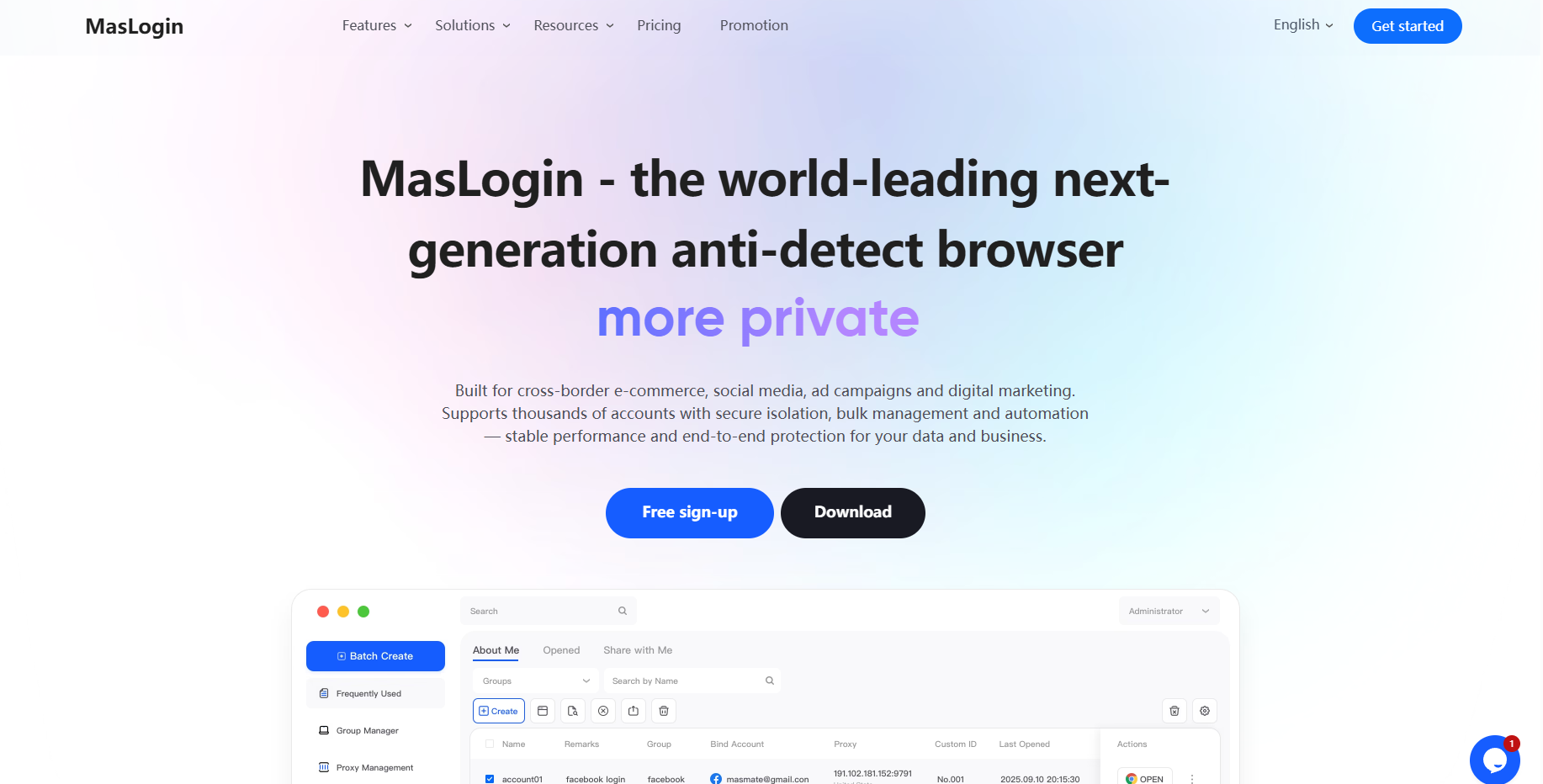
While optimizing Google privacy settings to block tracking and ad personalization, many users also need to operate multiple accounts for work. This is where MasLogin Fingerprint Browser comes in.
- Safer multi-account management: MasLogin’s anti-detect fingerprint tech prevents fingerprint recognition, reducing the risk of bans or account linking.
- Privacy & data protection: Combine Google privacy controls with MasLogin’s anti-fingerprint environment for double-layer data protection.
- Boost work efficiency: In e-commerce, affiliate marketing, or social media, MasLogin supports bulk logins, RPA automation, and smooth account operations — protecting privacy while improving efficiency.
Recommended practice:
- First adjust Google privacy settings → turn off Web & App Activity, Location History, Ad Personalization.
- Then combine MasLogin → isolate account environments, prevent tracking or misidentification.
For more details, see Google’s privacy documentation or visit MasLogin’s official site for complete multi-account and anti-tracking solutions.
Summary: 3 key steps to protect your privacy
- Disable tracking features (Web & App Activity, Location History, YouTube History).
- Restrict ad data usage (Ad Personalization, Ad Endorsements).
- Increase security levels (Two-Step Verification, third-party app checks).
FAQ
1. Why disable Web & App Activity?
Because it permanently stores your browsing history, location, and device data, which advertisers may use for precise tracking.
2. Does disabling Location History affect Google Maps?
No, navigation still works. It only stops background location storage.
3. Can I partially keep YouTube History?
Yes, you can pause or set an auto-delete period.
4. Will I still see ads if I turn off Ad Personalization?
Yes, but ads will be based on website context, not your personal data.
5. How do I check which third-party apps have my Google data access?
Go to the Third-Party App Access page in your Google account to review and manage permissions.
Simplify multi-account operations with MasLogin
Bring independent browser profiles, browser identity controls, proxy management, automation and team workflows into one workspace.


